











Guide
Ascora's layout has changed: the main menu can now sit down the left side, records show a shorter row of tabs with the rest under More, and Administration has its own menu with a search box.
This article is for anyone looking for something that used to be somewhere else.
Move the main menu to the left or back to the top
Select your name at the top right.
Under Navigation Layout, tick or untick Show the main menu on the left.
The choice is yours alone. Other users keep their own setting. New accounts start with the menu on the left.
The main menu on the left. Untick Show the main menu on the left under your name to move it back to the top. Sample data.
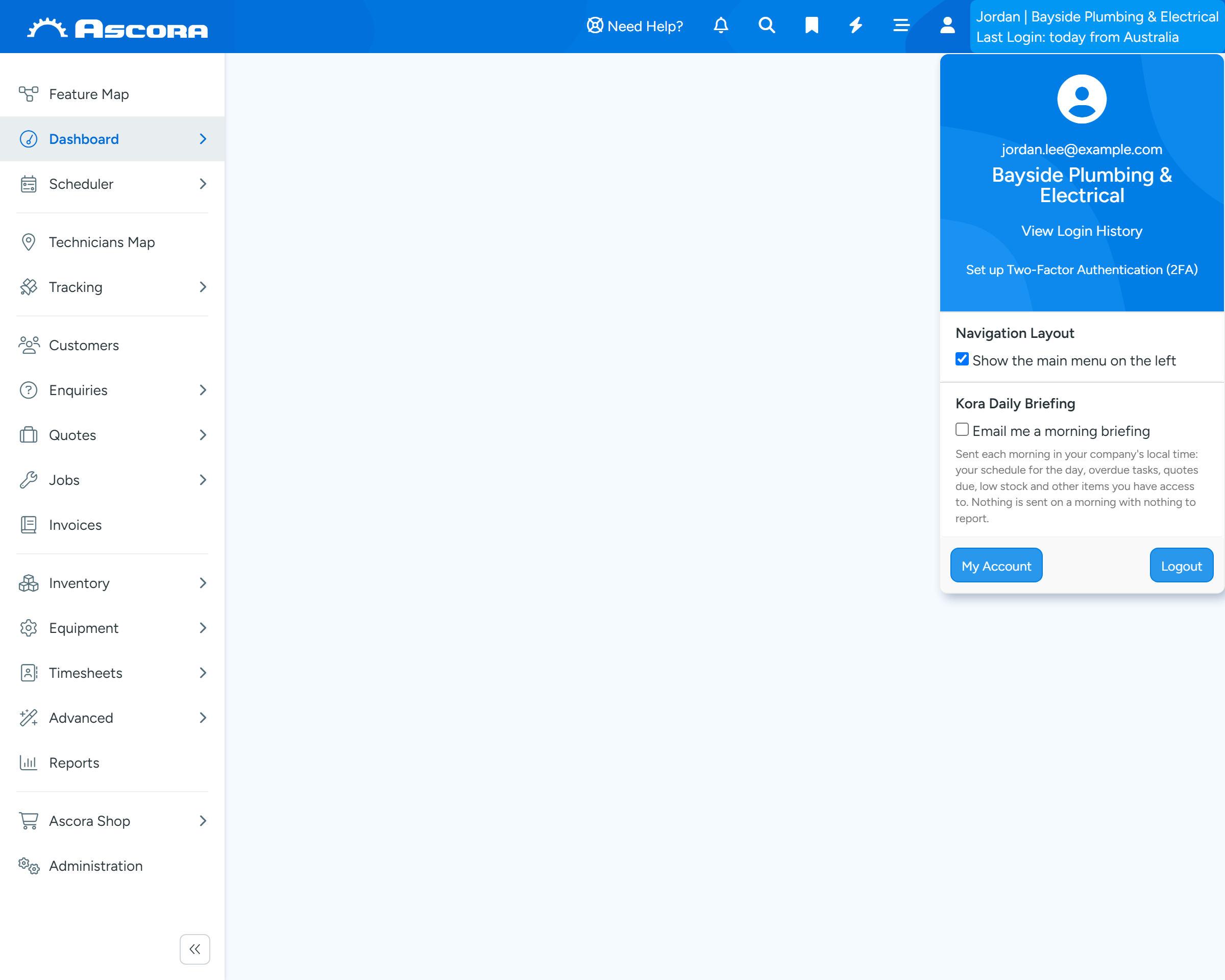
What is where on the left menu
- Dashboard: the Dashboard, Business Metrics and Business Brain.
- Scheduler: the Scheduler, Calendar, Job Whiteboard, Map Scheduler and Project Gantt.
- Technicians Map and Tracking.
- Customers, Enquiries, Quotes, Jobs and Invoices. The pipelines are under Enquiries, Quotes and Jobs.
- Inventory: Supplies, Kits, Suppliers, Purchase Orders, Supplier Invoices and the stock screens.
- Equipment: the Equipment List, Maintenance Planner and Equipment Types.
- Timesheets: Timesheet Reports, Timesheet Editor, Timesheet Calendar and Payroll.
- Advanced: Templates, Checklists, Contracts, Custom Forms, Completed Forms and Import.
- Reports, Ascora Shop and Administration.
Tip
Point at a menu item with an arrow to open its sub-menu. The button at the foot of the menu shrinks it to icons. On a narrower screen, and on Administration pages, it shrinks by itself.
Users and other settings
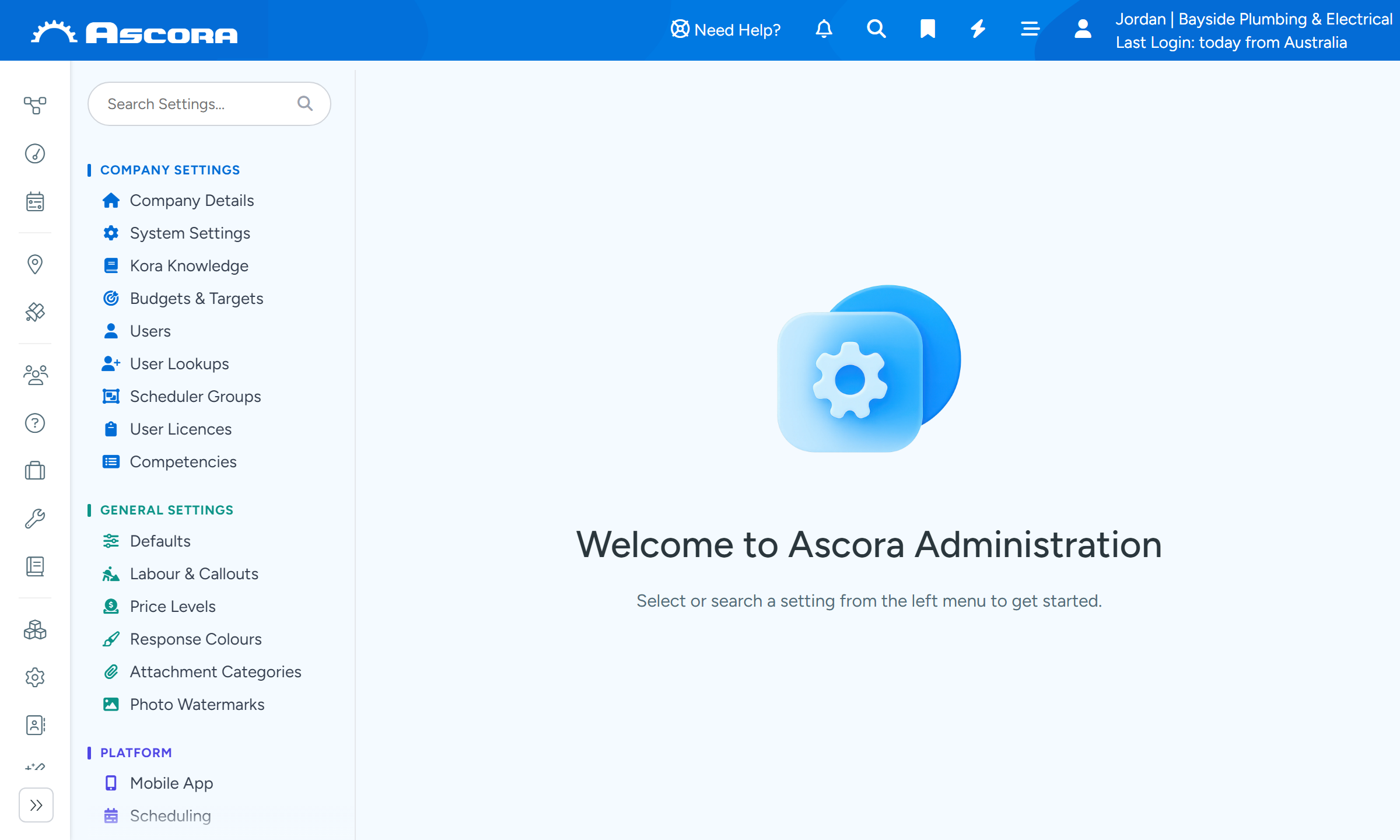
Select Administration. Users is in the first group, Company Settings, with Company Details and System Settings.
With the menu on the left, the Administration menu has a Search Settings box at the top. Type part of a setting's name to find its page.
With the menu on top, Users is under Administration > Company Settings > Users.
Tabs on Jobs, Quotes and Customers
A record shows its most used tabs in the tab bar. The others are under More at the end of the bar. On a Job, for example, Sections and Stages start under More.
To change which tabs are in the bar, select More > Customize tabs and pin the tabs you use. Reset to default puts them back. The choice is saved for you, for that kind of record.
Search
- Global Search: the magnifying glass at the top, or press Ctrl+K. It searches customers, Jobs, Invoices, Supplies and more, and remembers your recent searches.
- Search Settings: at the top of the Administration menu, for settings pages.
On the Scheduler
- The views are Day, 2 Days, Week and Month, laid out Horizontal or Vertical.
- The Job panel has a list at its top to switch between Unscheduled Jobs, All Open Jobs, Unscheduled Quotes, Multi-Schedule Jobs and Previous Incomplete Jobs, with a search box and Filter underneath.
- If short bookings are hard to read, widen the columns with the Column Width slider, use Full Screen, or point at a booking to see its details.
- What is written on each booking is set under Administration > Scheduling > Job Schedule Display.
On the Attachments tab
- Switch between List view and Grid view.
- Sort and Group the files, for example by date uploaded, category or who uploaded them.
- Tick files to download them, show or hide them in the Customer Portal, mark them confidential, or delete them.
- Download Zip downloads all attachments, or the images only.
Common questions
Can I go back to the old layout?
You can move the main menu back to the top with Navigation Layout under your name. The other changes, such as tabs under More, apply in both.
A tab I used is gone from a Job.
Look under More at the end of the tab bar, then pin it with Customize tabs.
Can Users be on the main menu?
Yes. An Administrator can tick Show User Tab On Main Menu under Administration > Defaults.