










💬 Booking Confirmation (Manual)
Effective communication with your customers is key to smooth operations. With Ascora, you can customize your SMS template for booking confirmations so that every message is clear, consistent, and automatically populated with important details like booking date, time, and job description. This guide will walk you through building and saving your SMS template, ensuring that you can efficiently notify your customers of their upcoming appointments.
1. Go to Administration → Booking Confirmation
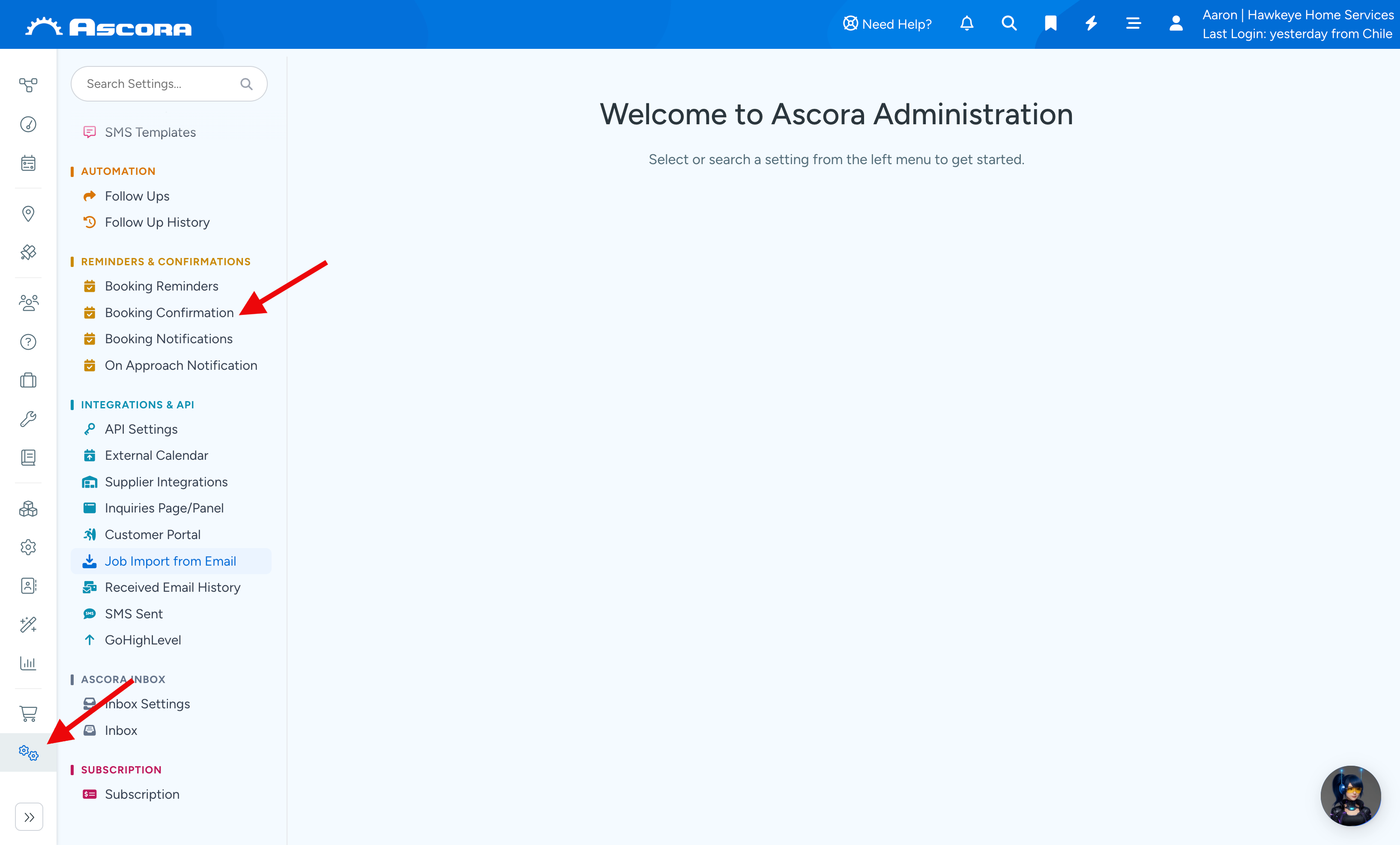
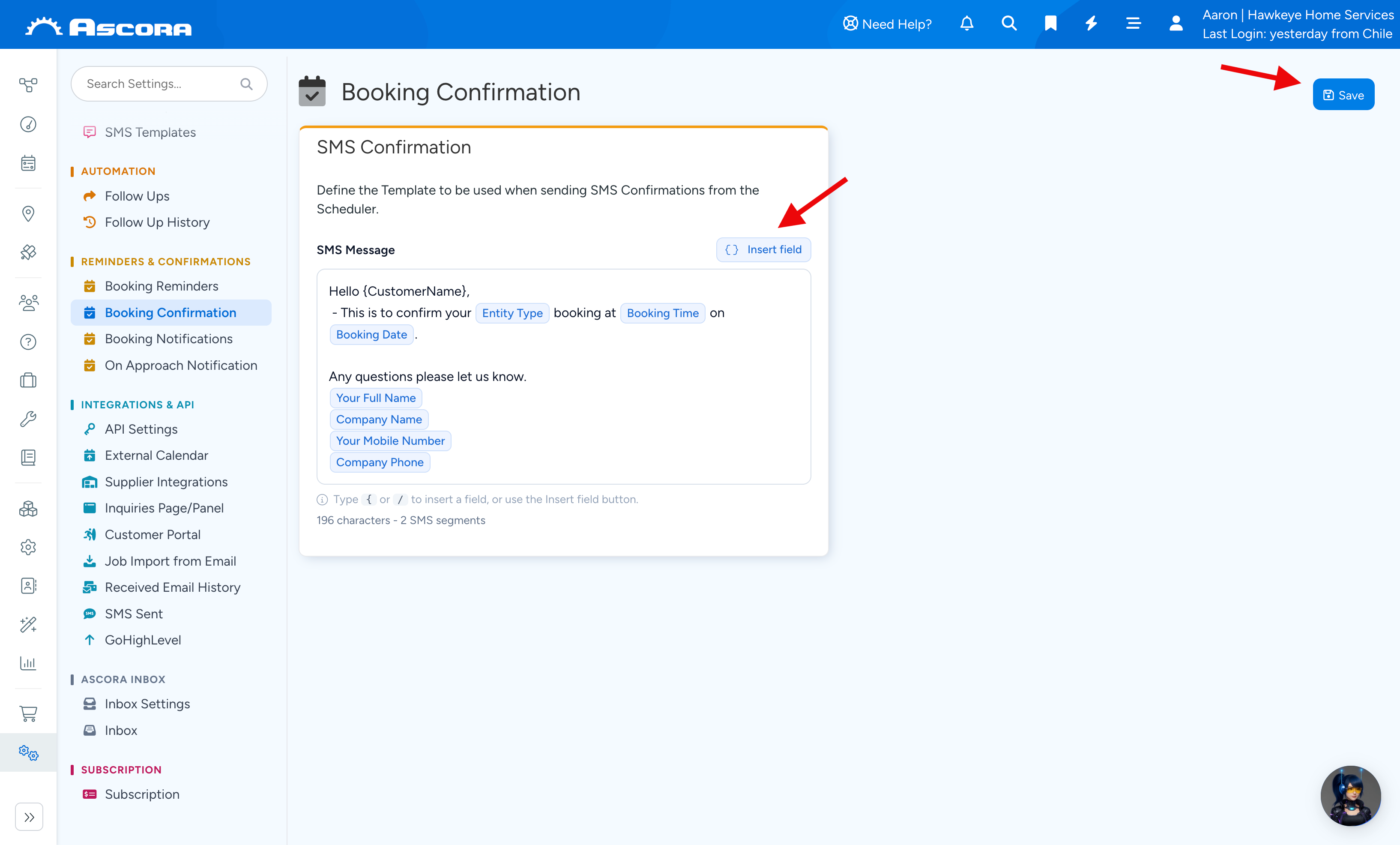
2. Build your SMS template by adding dynamic fields from "Insert field". Once you're done building your SMS template, click Save button located on the upper right part of the screen.
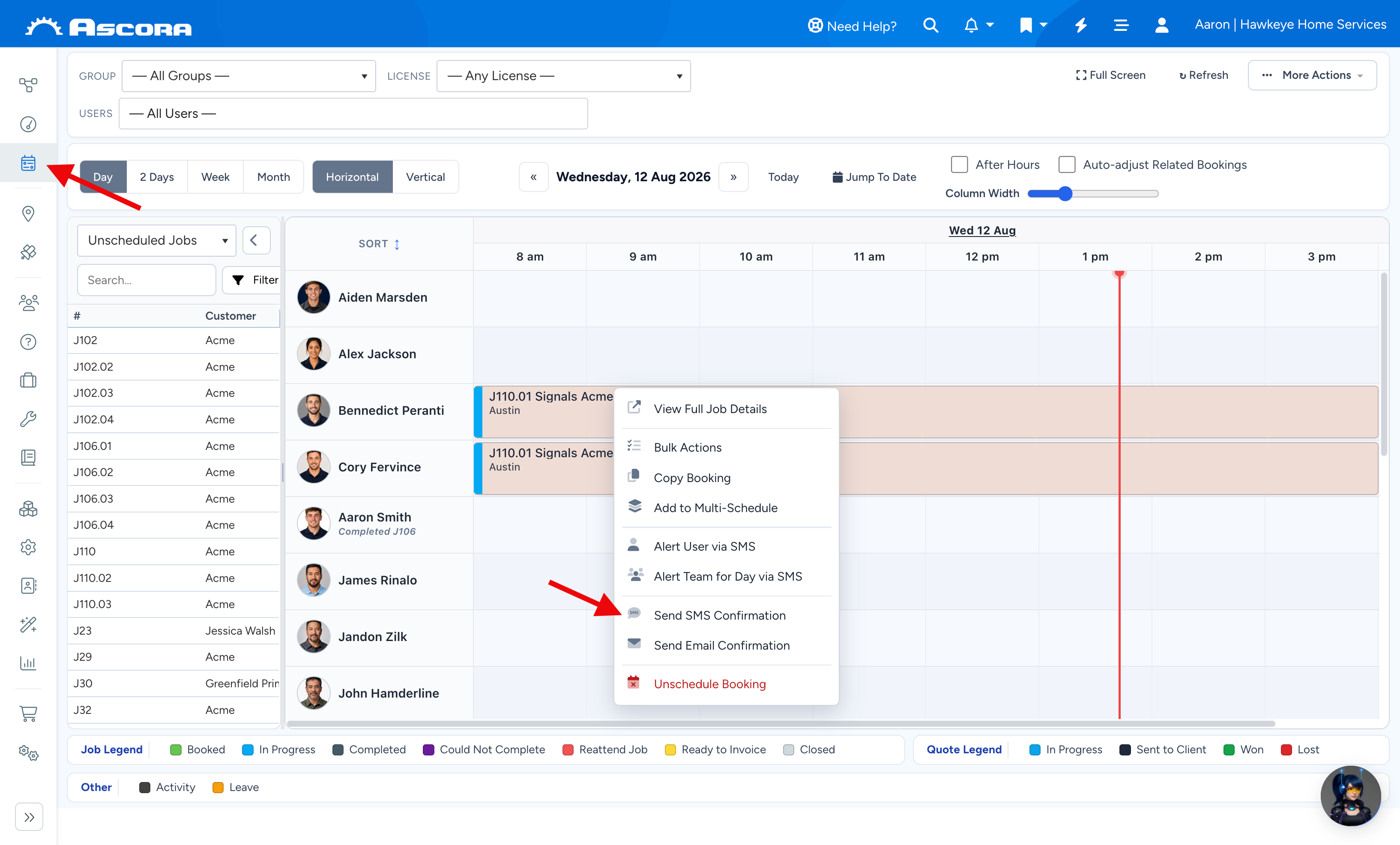
Sending SMS Booking Confirmation
1. Go to Scheduler and right click on a job then select Send SMS Confirmation.
2. Select Booking Confirmation as the SMS Template and click Send. The information are auto populated depending on which fields we've added.
Got a question?
Submit an Idea
💡 Go to Ideas Portal
Was this article helpful?
Contact support