











How to
A Job with Sections breaks a larger project into parts, such as Demolition, Framing and Electrical. Each Section is a Job of its own under the parent, with its own pricing, supplies, labour and bookings.
This article is for office staff who set up and run project work.
Before you start
- Your user needs permission to edit Jobs.
- Sections is not on every plan. If it is missing from the Pricing Method list, ask Ascora Support whether your plan includes it.
- A Section cannot have Sections of its own.
Create the parent Job and add Sections
Create a new Job, or open an existing one.
On the Details tab, set Pricing Method to Sections and save.
The Job no longer has its own Supplies and Labour tabs. Those belong to each Section.
Open the Sections tab.
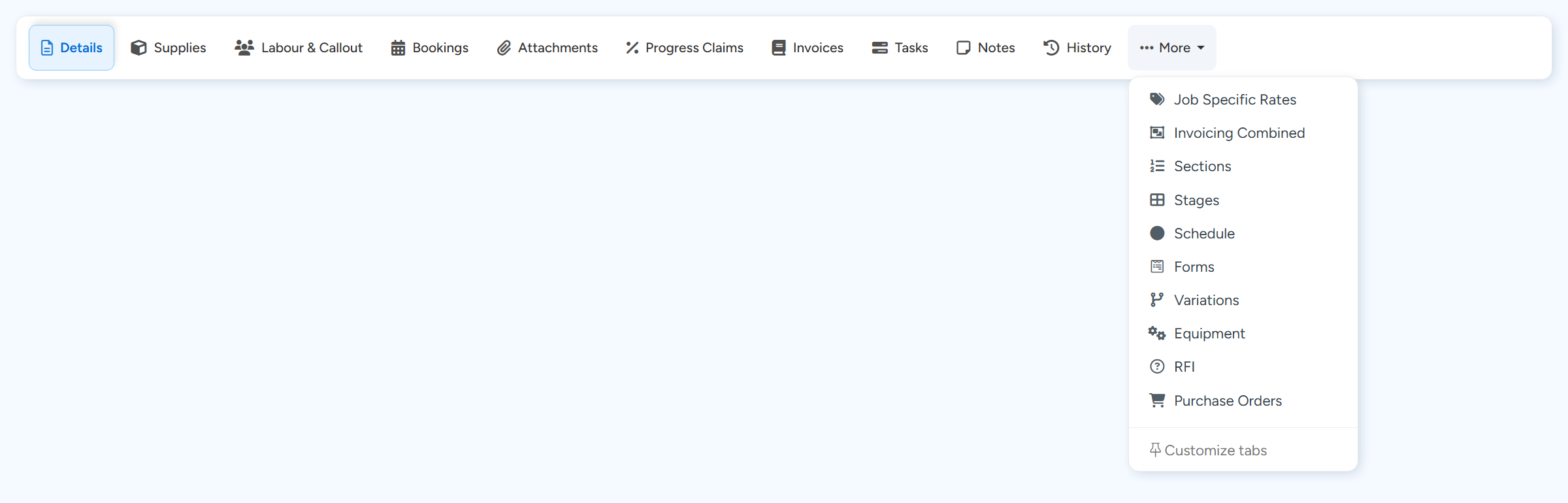
If you cannot see it in the tab bar, select More. To keep it in the tab bar, select More > Customize tabs and pin it.
Sections is under More until you pin it. Choose Customize tabs to pin it to the tab bar. Sample data. Select Add New Section, type the Section name in the new row, then select Save Changes.
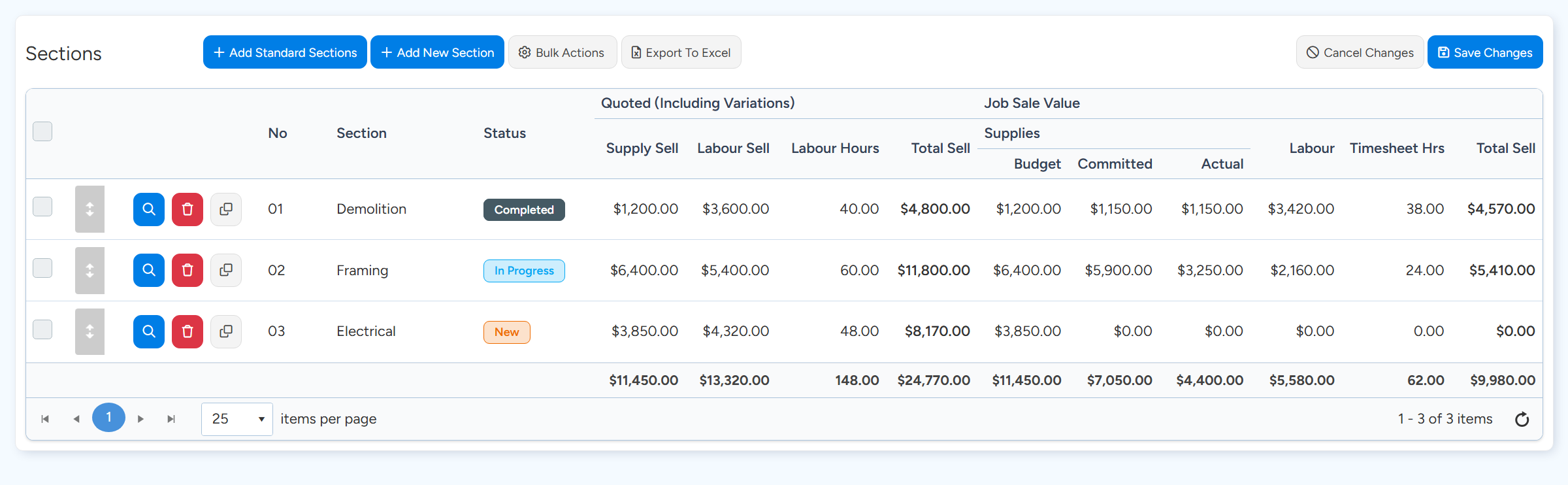
Each Section has view, delete and copy buttons on its row. Save Changes and Cancel Changes appear once you add or change a Section. Sample data. Tip Add Standard Sections lets you tick Sections from your own standard list and select Add Selected.
Repeat for each Section.
Fill in a Section
On the Sections tab, select the view button (the magnifier) on the Section's row.
The Section opens in a new browser tab. It has the parent's Job number with a suffix, for example J123.05, and a View Parent Job link on its Details tab.
Set the Section's Pricing Method to Fixed Price or Time and Materials.
Add the supplies, labour and other charges for that part of the work.
Schedule the Section as you would any Job.
Set up Standard Sections
Go to Administration > Jobs.
Open the Projects tab.
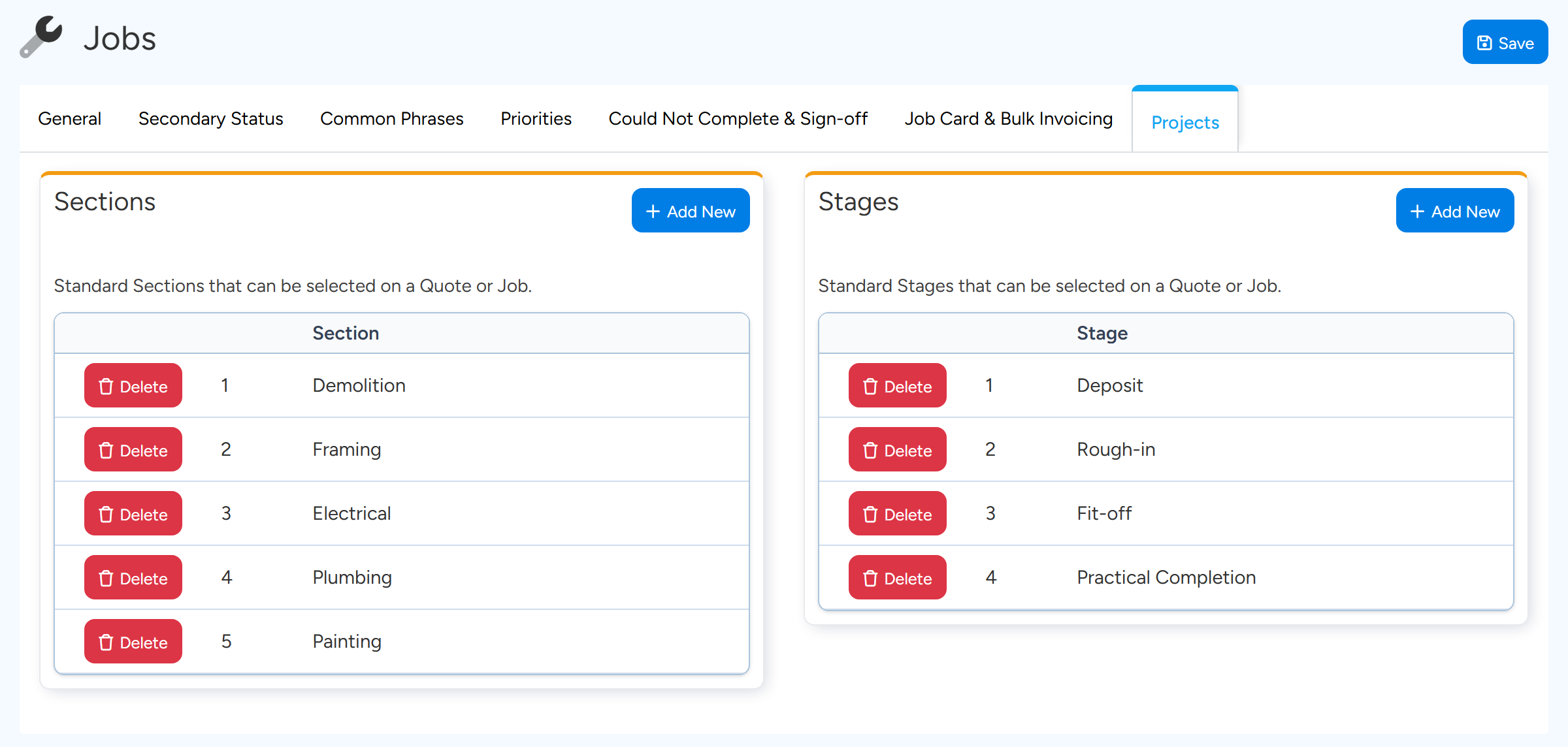
In the Sections box, select Add New and type the Section name.
A Standard Section is a name and an order only. It carries no supplies or labour.
Standard Sections are kept on the Projects tab of Administration > Jobs. Add New adds a row to the list. Sample data.
Tip
To reuse Sections that already hold supplies and labour, build a Job Template with a Pricing Method of Sections.
Invoicing a Job with Sections
On the parent Job's Invoices tab, select New Section/Stage Invoice to invoice Sections.
When the work is complete, Invoice & Close All Jobs on the parent invoices and closes the Sections together.
To bill as the work progresses, use the Progress Claims tab (Progress Billings on U.S. accounts). Add Claim Sections From Job Sections builds the claim from your Sections.
Warning
Changing the Pricing Method away from Sections archives the Sections. Ascora blocks the change when labour, timesheets, materials or bookings are recorded against them.
Common questions
Where do I add Standard Sections? I cannot see it under Administration > Jobs.
It is on the Projects tab of that page, in the Sections box. The first tab you land on does not show it.
Do Sections on a Quote carry over to the Job?
Yes. A Quote can use Sections in the same way. When you convert it, each Quote Section becomes a Job Section with the same number. Optional Sections that were not accepted are left out.
Can I add Sections to a Job that already has supplies and labour?
You can change the Pricing Method to Sections, but the supplies and labour already on the Job are then not available to it. Set the Pricing Method before adding items where you can.