











📝Create an On-Demand Job Template
On-Demand Job Templates are a game-changer for businesses that perform recurring or standardized work. Instead of manually creating jobs from scratch every time, you can save time, improve consistency, and reduce errors by using pre-configured templates.
These templates streamline your workflow by:
✔ Standardizing job deails – Ensure job descriptions, pricing, and materials are always correct
✔ Reducing repetitive data entry – No need to manually input the same job information each time
✔ Improving scheduling efficiency – Quickly create new jobs without delays
✔ Enhancing accuracy – Reduce the risk of missing important job components
Whether you’re setting up routine maintenance, scheduled services, or common repair jobs, On-Demand Job Templates help optimize your job management process and increase productivity.
Use Job Templates to quickly create new Jobs for frequently undertaken work, as well as to create Recurring Jobs.
▶ An On-Demand Job Template is used to quickly create a new Job based on a standard format (eg, Job Description, Supplies, etc)
▶ A Recurring Job Template is similar to an On-Demand Template but adds the ability to include scheduling information and have Ascora automatically create (and schedule) future Jobs.
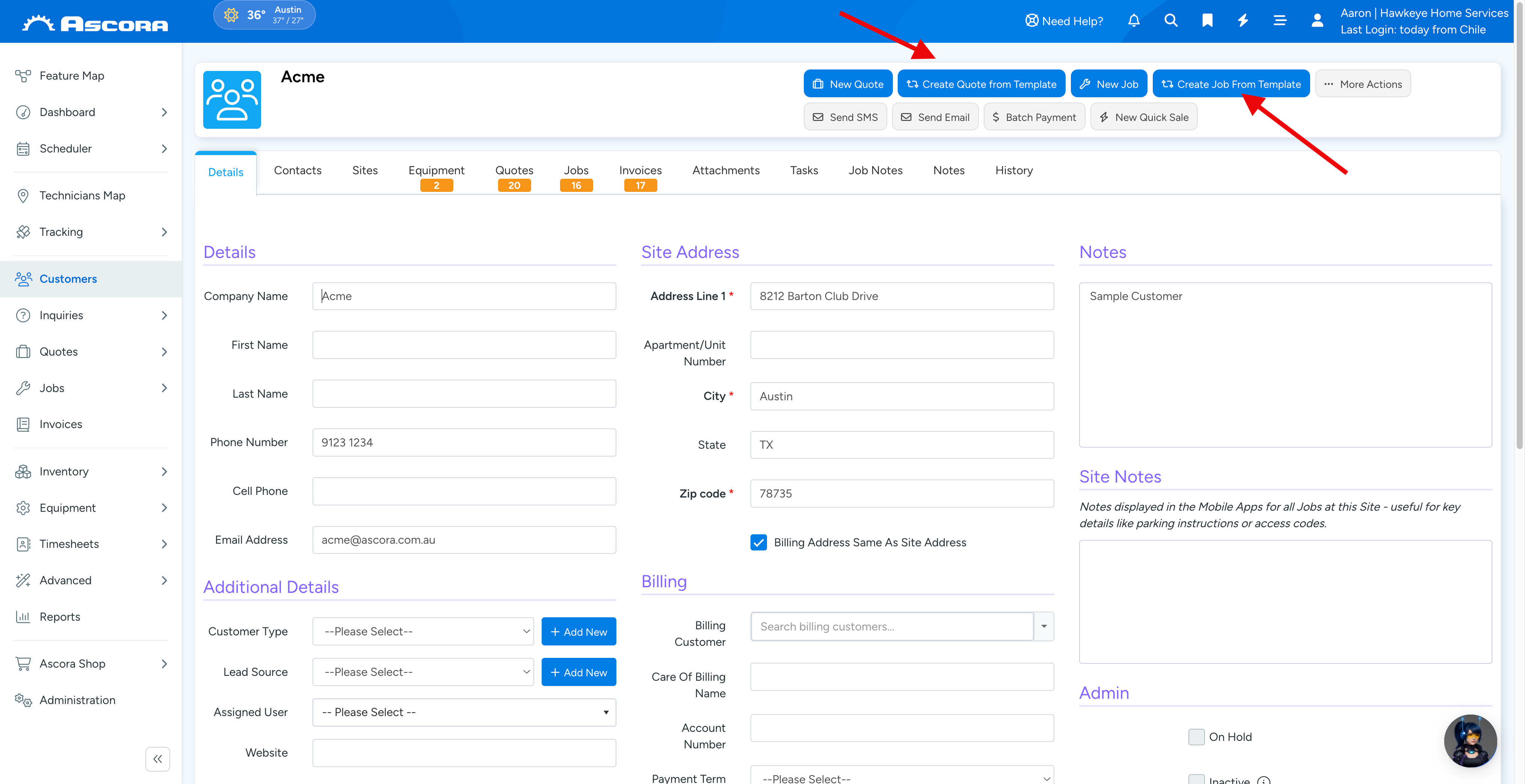
To use an On-Demand Template, choose Create Job From Template or Create Quote From Template on a Customer Card.
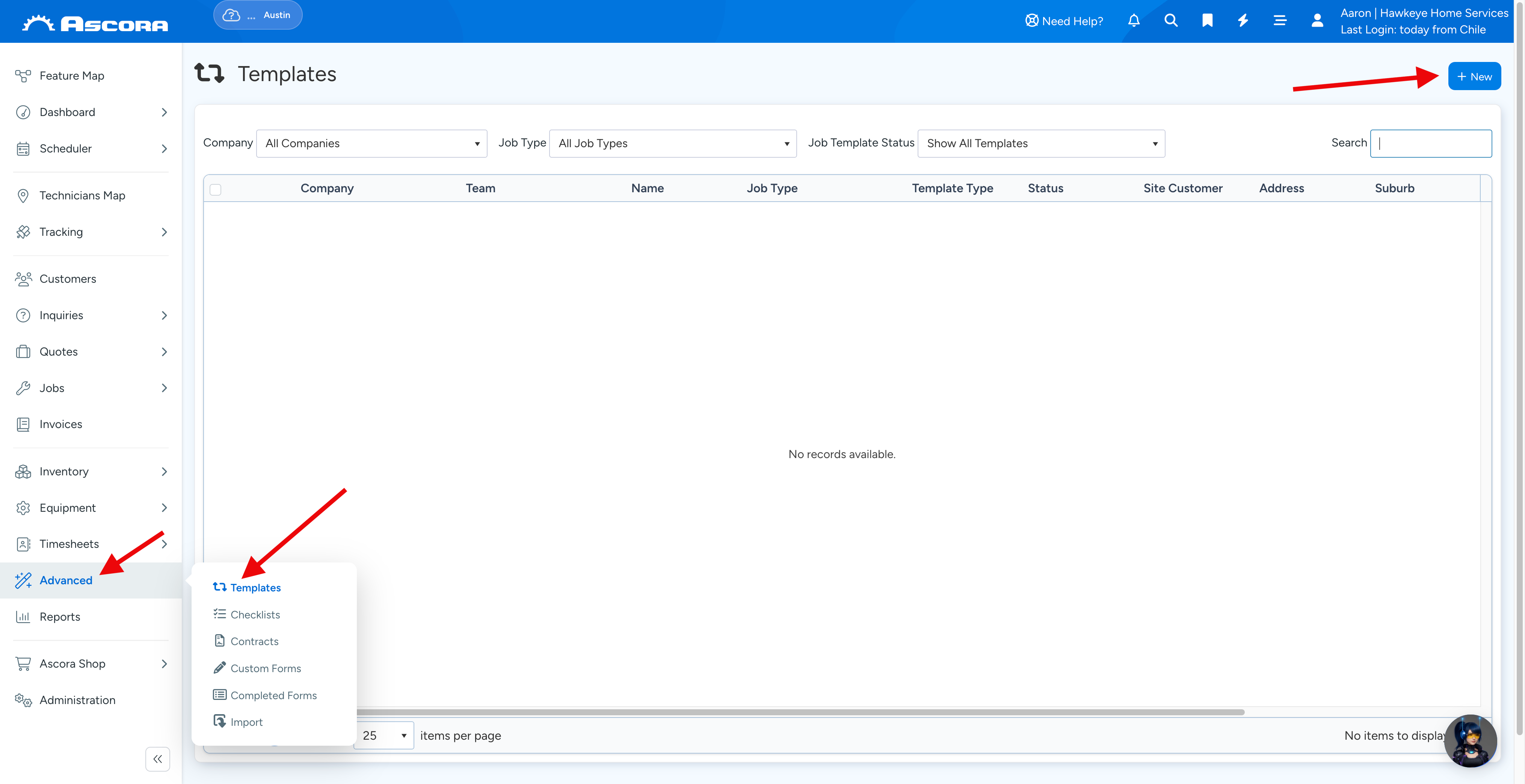
You can create a new On-Demand Template from the Advanced Icon in the side navbar, by choosing Templates.
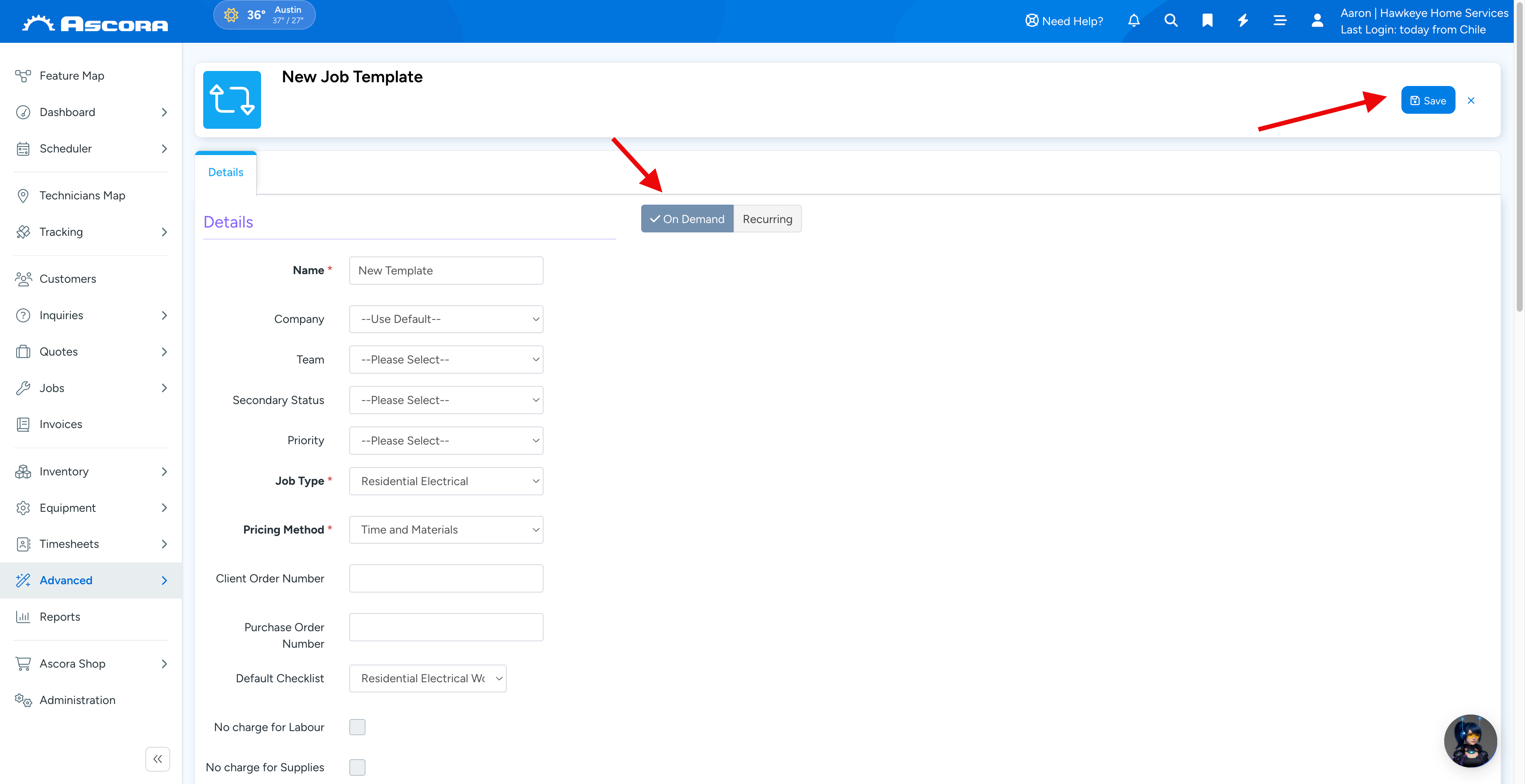
1. Click the +New button.
2. Click the On Demand button and then enter Details for the Job Template.
3. When you are ready, click the Save button.
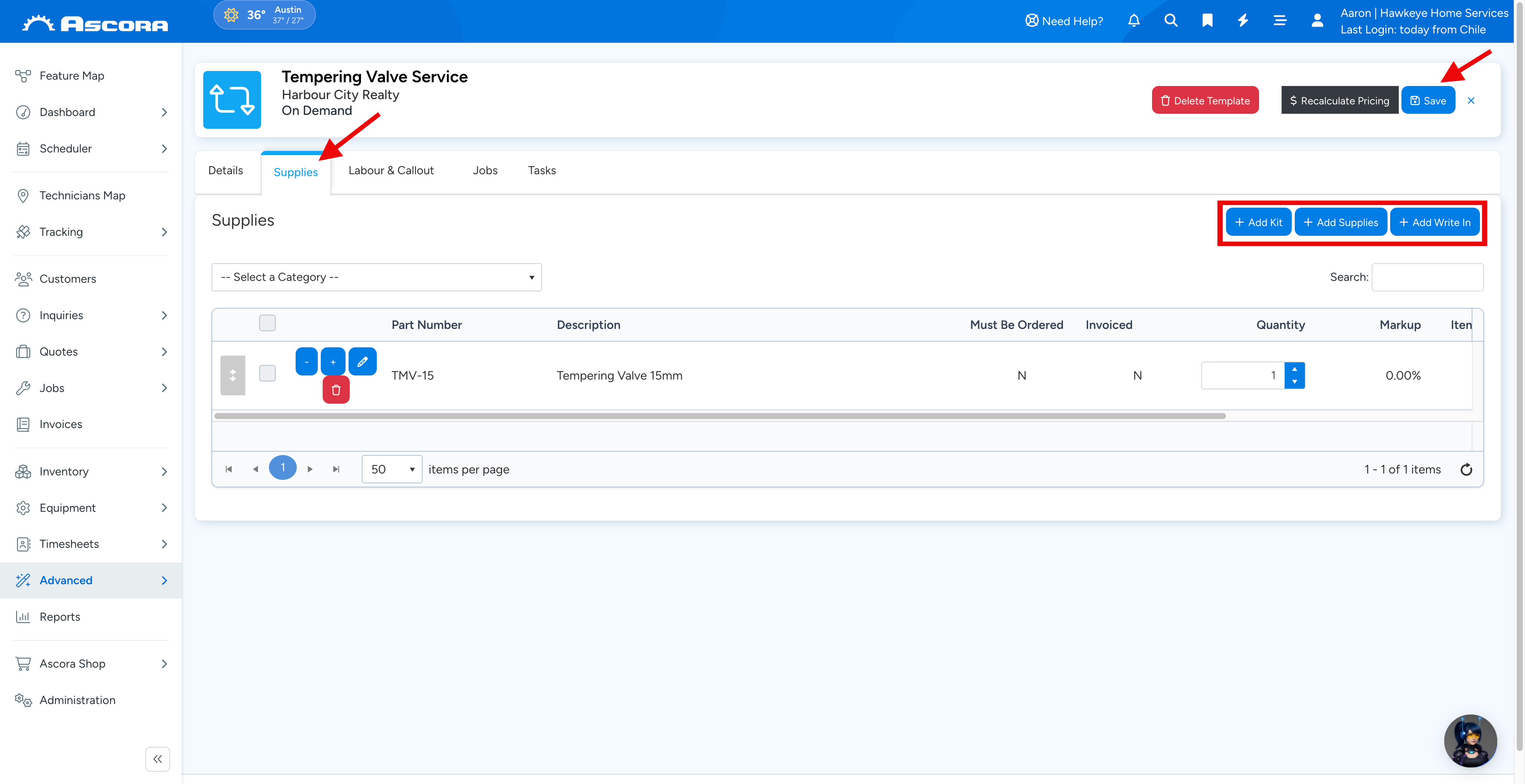
Add Supplies to an On-Demand Template
Click the Supplies Tab on the Job Template Card. You can then choose to add Supplies, Write Ins, and/or Kits. For assistance see Add Supplies to a Job.
When you are ready, click the Save button.
Add Labour and Callout Charges to an On-Demand Template
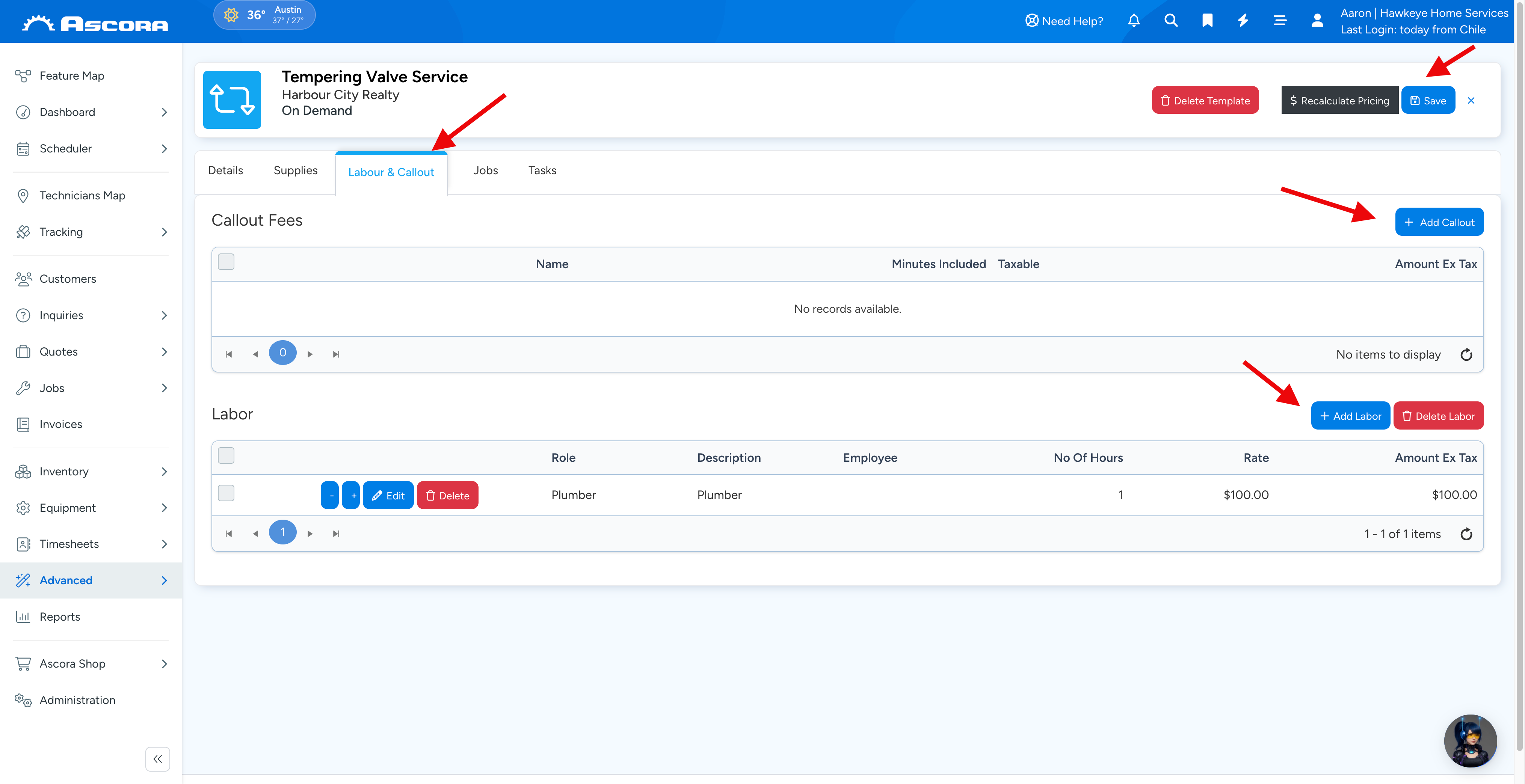
Click the Labour & Callout Tab on the Job Template Card. You can then choose to add a Callout Fee and/or Labour Charges as required. When you are ready, click the Save button.
Sub Pages
Got a question?
Submit an Idea
💡 Go to Ideas Portal
Was this article helpful?
Contact support