











Guide
Stock is tracked only when two things are switched on: inventory tracking for your account, and tracking on each Supply. Most questions about missing stock figures come back to one of the two.
This article is for office and stores staff.
Turn on inventory tracking for your account
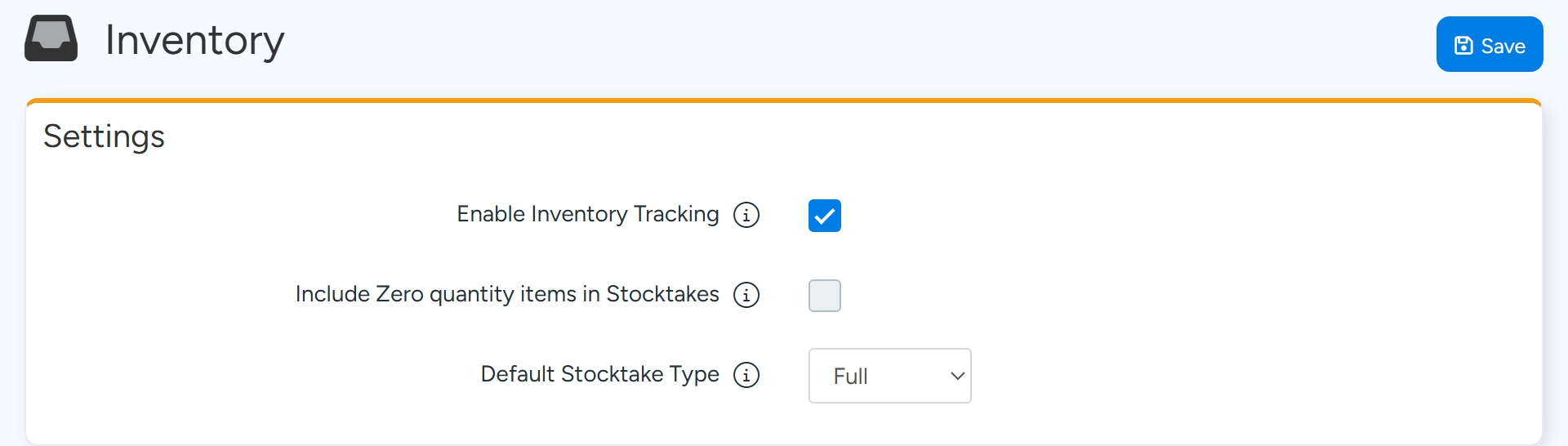
Go to Administration > Inventory.
You can also get there from the Supplies list with More Actions > Inventory Settings.
Tick Enable Inventory Tracking and confirm.
Enable Inventory Tracking is on the Inventory page under Administration. Sample data. Select Save.
Ascora recommends a Stock Take after turning this on, so your starting quantities are right.
What turning it on adds
The menu gains Stock Adjustments, Stock Transfer, Stock Take and Stock Reorder. Each Supply gains the tabs Stock Levels, Barcodes and Recent Transactions. The Supplies list gains the columns Stock On Hand, Average Cost and Stock Value.
Your warehouses and vans are set up as Stock Locations on the same Inventory page.
Track a Supply
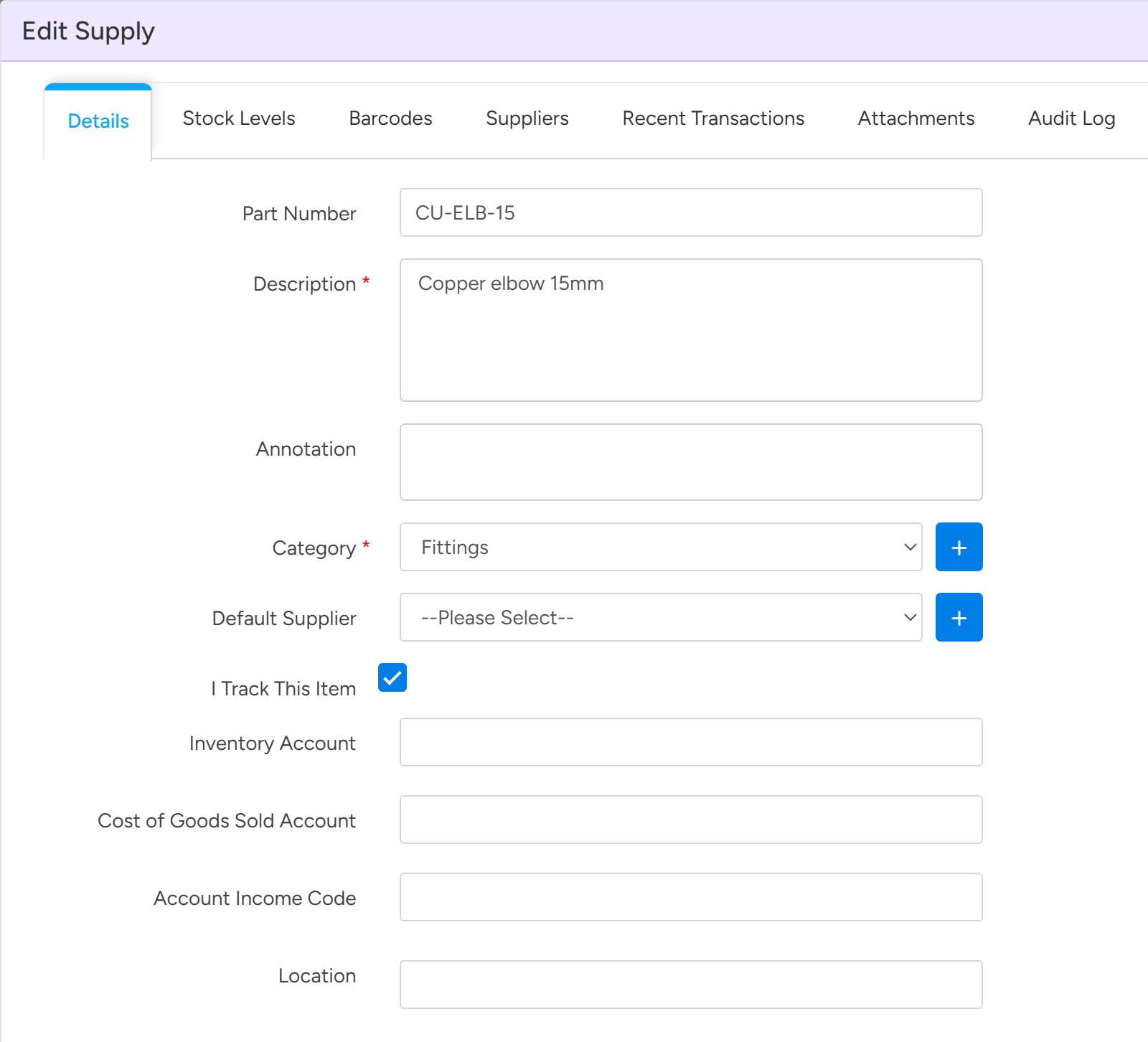
Open the Supply and go to the Details tab.
Tick I Track This Item and save.
I Track This Item is on the Details tab of each Supply. Sample data.
Tip
To track many Supplies at once, tick them on the Supplies list and select Set Tracked Details. Tick I Track This Item in the window and select Update.
A Supply shows no stock
- I Track This Item is not ticked. The Supplies list shows Stock On Hand as 0, and the Stock Levels tab says tracking is not enabled for the Supply, with no adjustment or transfer buttons.
- You have filtered by a Stock Location. The list then shows only tracked Supplies that have stock at that location.
- The stock is at another location. Check the Stock Levels tab, which lists every location.
A Stock Take is empty or a Supply is missing from it
- A Supply is listed only if it is tracked and has a stock level at that Stock Location.
- A Supply with zero stock at the location is left out, unless Include Zero quantity items in Stocktakes is ticked on the Inventory page and the Supply has a reorder level or threshold.
- You can still add any Supply to the Stock Take with Add Supply or Scan Barcode to Add Supply.
- Only one Stock Take can be in progress for a location at a time.
Why a Job says Parts Require Reorder
This warning does not look at stock on hand. It shows on an open Job when a Supply line is ticked Must Be Ordered and the quantity on the Job is more than the quantity already on Purchase Orders.
A line takes its Must Be Ordered tick from the Supply. Write-in lines take theirs from Write In Must Be Ordered under Administration > Supplies & Kits.
The warning clears when the line is put on a Purchase Order, or when you untick Must Be Ordered on the line. There is no setting that switches the warning off.
Common questions
I enabled inventory tracking but every Supply still shows 0.
Each Supply also needs I Track This Item ticked, and a starting quantity from a Stock Take or a Stock Adjustment.
Can I set I Track This Item with Bulk Edit?
Not with Bulk Edit. Use Set Tracked Details on the Supplies list.
We do not hold stock. How do we stop the reorder warning?
Untick Must Be Ordered on your Supplies, so new lines do not carry it.
Can I undo a Stock Take?
Only the most recent Stock Take for a location can have its commit reversed.