











How to
Optimise Schedule takes the jobs already booked on a day and works out the shortest routes between them. You choose the day and the people, decide whether jobs can move between people, lock the jobs that must stay, and review the new day on a map. Nothing is saved until you accept the plan.
This article is for schedulers and office staff who book the day for a team in the field.
Before you start
- There is nothing to switch on. Optimise Schedule is shown on the Scheduler to anyone with permission to edit Bookings.
- It works on the bookings you already have. It does not create jobs.
- One plan covers up to 10 people and 80 jobs. For a bigger day, plan one team at a time.
- Today is the earliest day you can plan. On today, a job whose booked time has already passed stays as booked.
- A job needs a position on the map to be planned. A job whose site has no map position stays as booked.
- Each person starts at your company yard, which is your company address, or at home when a home address is saved on their user details.
Choose the day, the people and what may change
Go to Scheduler > Scheduler and show the day you want to plan.
Select Optimise Schedule at the top right of the Scheduler.
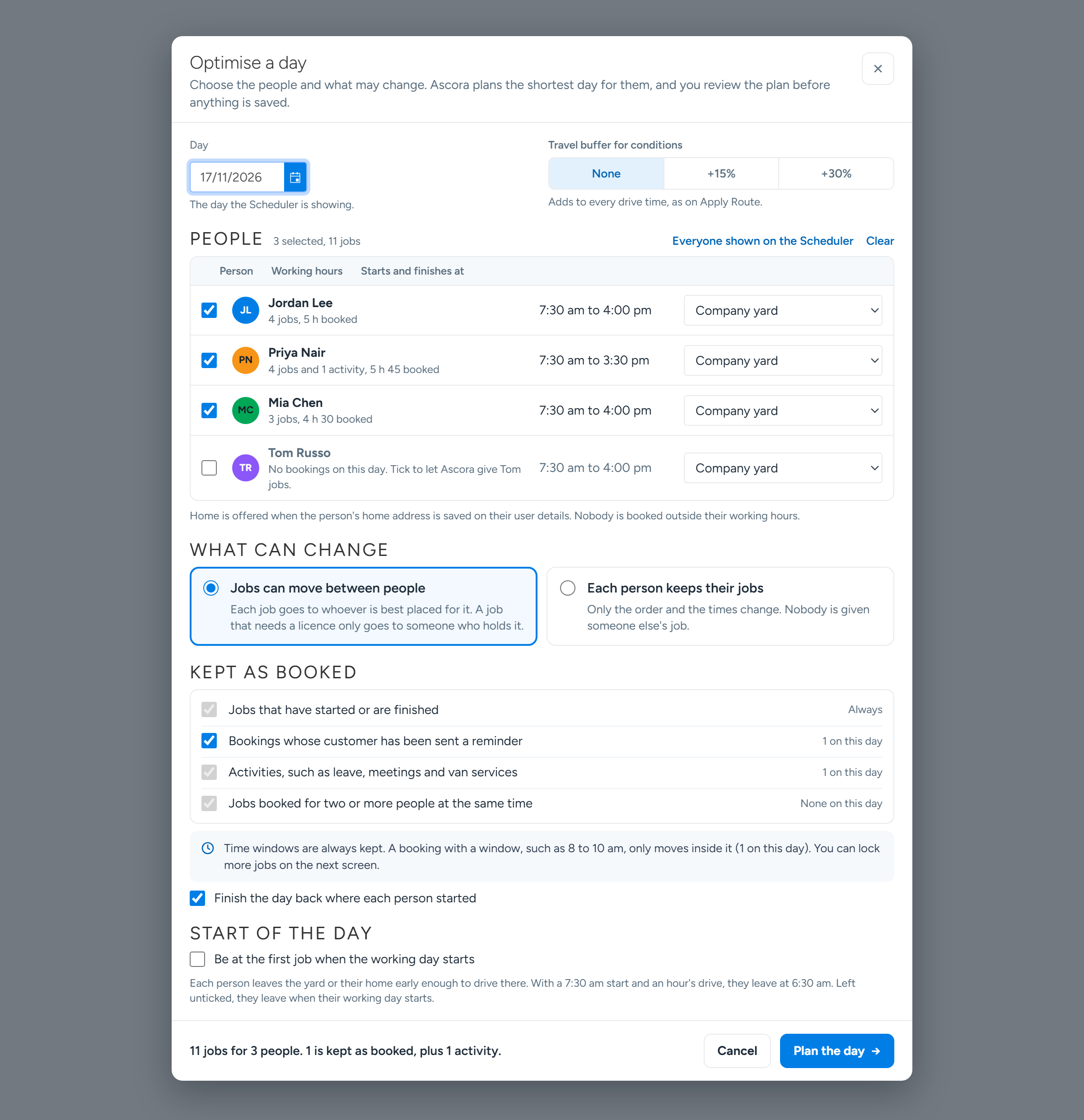
The Optimise a day window opens on the day the Scheduler is showing. To plan one person's day only, right-click their name on the Scheduler and select the option to optimise their day.
Check the Day.
Under People, tick the people to plan.
The people shown on the Scheduler who have a job that day are ticked for you. Everyone shown on the Scheduler ticks everyone the Scheduler is showing, and Clear unticks them all. Each row shows the person's working hours and what they have booked.
Under Starts and finishes at, choose Company yard or Home for each person.
Home is only offered when the person's home address is saved on their user details.
Under What can change, select Jobs can move between people or Each person keeps their jobs.
With Jobs can move between people, each job goes to whoever is best placed for it, and a job that needs a licence only goes to someone who holds it. With Each person keeps their jobs, only the order and the times change.
Under Kept as booked, leave Bookings whose customer has been sent a reminder ticked to keep those bookings at the time the customer was told.
Untick it to let them move. The other rows are always kept and cannot be unticked.
Optimise a day: the day, the people, what can change and what is kept as booked. Sample data. Leave Finish the day back where each person started ticked to plan the drive back as well.
If the roads will be slow, select +15% or +30% under Travel buffer for conditions.
This adds that much to every drive time.
Tick Be at the first job when the working day starts if each person should leave early enough to be on site at the start of their day.
Left unticked, each person leaves when their working day starts.
Select Plan the day.
The planner opens with the day as it is booked now.
What always stays as booked
- Jobs that have started or are finished.
- Activities, such as leave, meetings and van services.
- Jobs booked for two or more people at the same time. You can unlock one of these on the planner if you need to.
- Bookings whose customer has been sent a reminder, unless you untick that row or unlock the booking on the planner.
- A booking with a time window only moves inside its window. If the window is not written as a time, the booking stays as booked.
- Nobody is booked outside their working hours.
Lock what must stay, then optimise
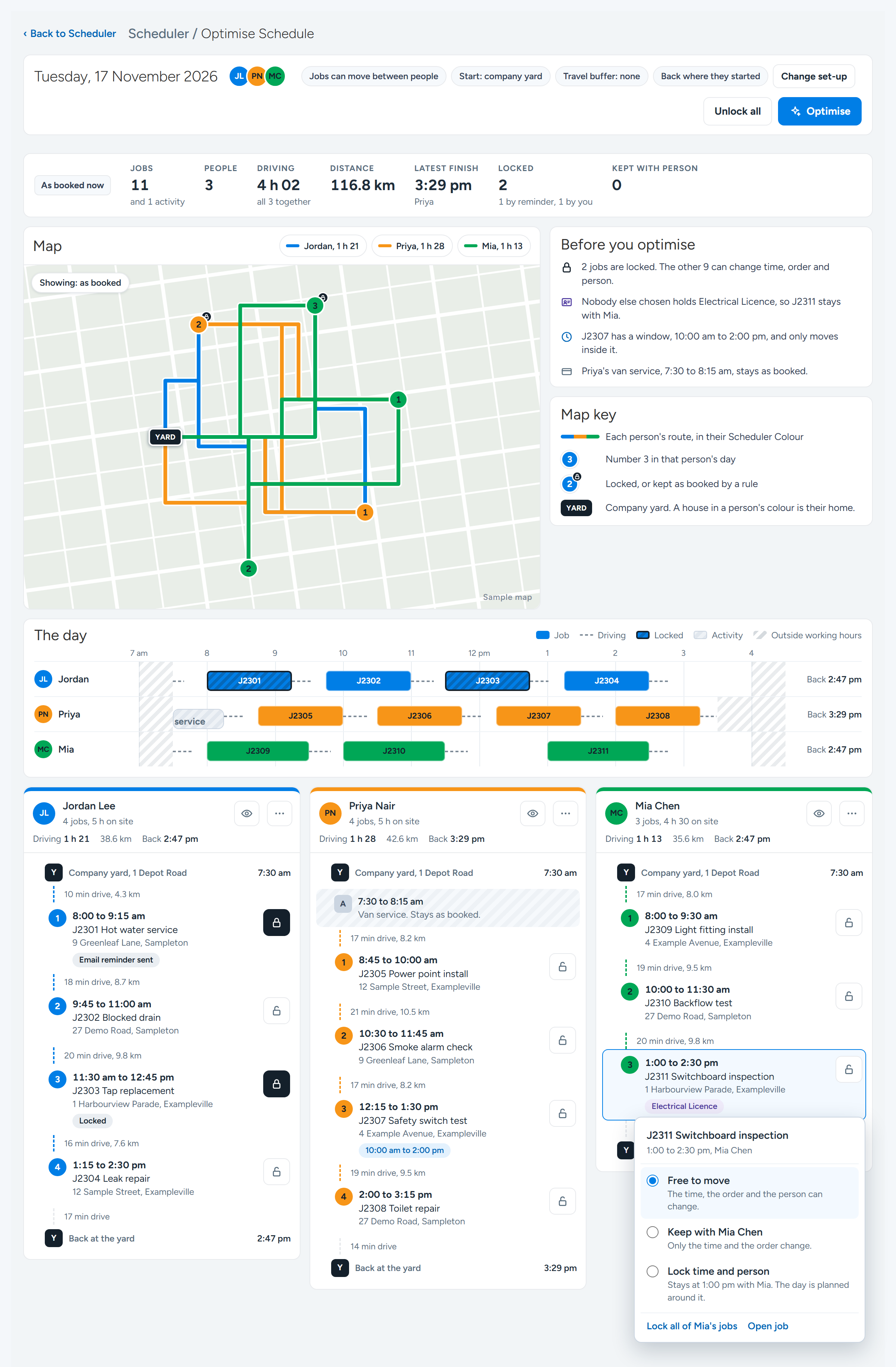
Read the Before you optimise panel beside the map.
It tells you what is worth knowing about the day before you start, such as how many jobs are locked, which jobs have a time window, which jobs need a licence, and which activities stay as booked.
Find a job that must not move in the list for its person, and select the lock button on the job.
The planner draws each person's route on the map in their Scheduler Colour and lists the day person by person. Every job has a lock button.
Choose Free to move, Keep with the person, or Lock time and person.
Free to move lets the time, the order and the person change. Keep with the person lets only the time and the order change. Lock time and person keeps the job at its time with its person, and the day is planned around it.
The planner: each person's route in their Scheduler Colour, with a lock on every job. The lock menu is open on one of the jobs. Sample data. Repeat for each job that must stay.
To lock a whole day, select the three dots at the top of a person's list and choose the option to lock all of their jobs. Unlock all at the top of the page clears the locks you have set.
Select Optimise.
Ascora plans the day around your locks, working hours, licences, time windows, activities and leave. It takes a few seconds, and you can select Cancel while it works.
Review the plan and accept it
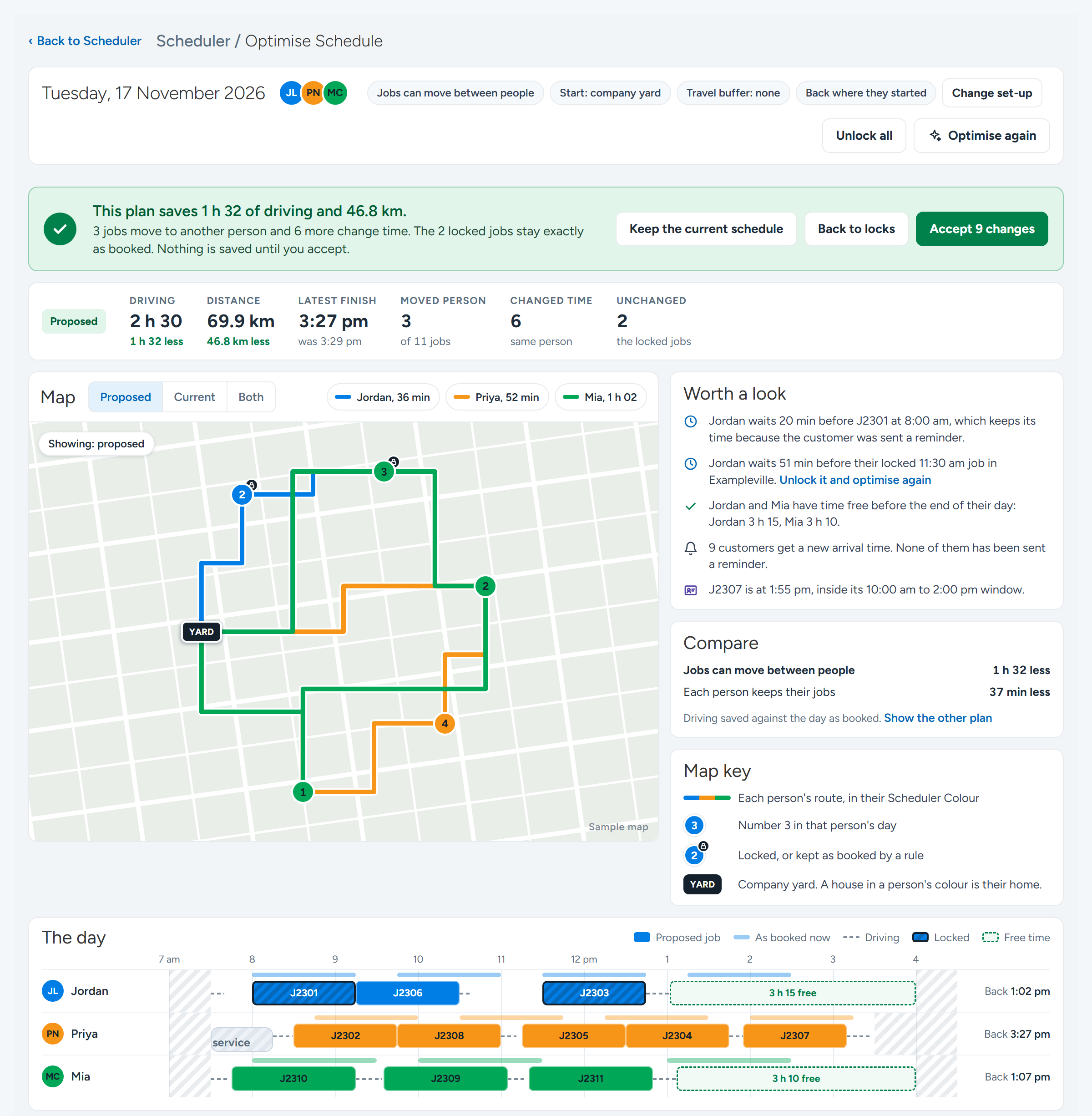
Read the green panel at the top.
It says how much driving and distance the plan saves, how many jobs move to another person and how many change time. Nothing is saved until you accept.
The review: what the plan saves, the proposed day on the map, and the parts worth a look before you accept. Sample data. On the Map, select Proposed, Current or Both.
Proposed shows the new day, Current shows the day as booked, and Both shows them together.
Read the Worth a look panel.
It points out the parts of the plan you may want to check, such as a wait before a locked job, how many customers get a new arrival time, and who has free time at the end of their day.
Check the list for each person under By person.
A job that moved shows who it came from and the time it had. To adjust the plan yourself, drag a job up or down, or onto another person. The times recalculate for the people touched.
If you change a lock or want the day planned around your own changes, select Optimise again.
Select the Accept button, for example Accept 9 changes.
A window lists every change by person, with the old time and the new time.
Choose whether to tick Change the job's Assigned To as well, when it names the person the job moved from.
It is ticked to begin with. A job assigned to someone else keeps its Assigned To.
Tick Email the updated schedule if you want the people whose day changed to be sent their schedule.
This is the same email as Email Schedules on the Scheduler. Customers are not sent anything.
Select the Update button, for example Update 9 bookings.
Every change is saved together, and each one shows in the job's History. You are taken back to the Scheduler.
Tip
Back on the Scheduler, a message at the bottom of the screen offers Undo and View changes for two minutes. Undo puts the bookings back as they were. To leave the day alone instead of accepting a plan, select Keep the current schedule on the review.
Compare the two ways of planning
When you chose Jobs can move between people, the review also has a Compare panel. It shows how much driving is saved with jobs moving between people, and how much is saved with each person keeping their own jobs.
Select Show the other plan to see the driving for each person under both plans. From there you can select Use the keep-jobs plan to review that plan instead.
Common questions
Why did a job not move?
It was locked, or a rule kept it as booked. The job shows a tag with the reason, such as Email reminder sent, Started, Crew job, No map position or Locked. Select the lock button on the job to see why. Where the rule allows it, Unlock anyway lets the job move.
What happens if someone else changes a booking while I am reviewing the plan?
When you select the Update button, nothing is saved and Ascora tells you which booking changed. Select Optimise again to plan the day as it is now.
Are customers told about their new time?
No. Optimise Schedule does not send anything to customers. The Worth a look panel tells you how many customers get a new arrival time, and whether any of them had already been sent a reminder for the old time.
The plan says drive times are estimates. What does that mean?
Driving directions were not available, so the plan used straight-line estimates instead. Check the plan on the map before you accept it.
Does Optimise Schedule need Routes to be turned on?
No. Optimise Schedule works on the bookings you already have and is there for every account. Routes is a separate feature that creates new jobs from a saved run of sites.