











🔐 Setting up Two-Factor Authentication in Ascora
Two-Factor Authentication (2FA) provides an added layer of security for your account and company data. Ascora offers the flexibility to enforce 2FA for the entire company or set it up for individual users. Follow this guide to get started with 2FA.
Enforcing Two-Factor Authentication Company-Wide
Navigate to Administration > System Settings
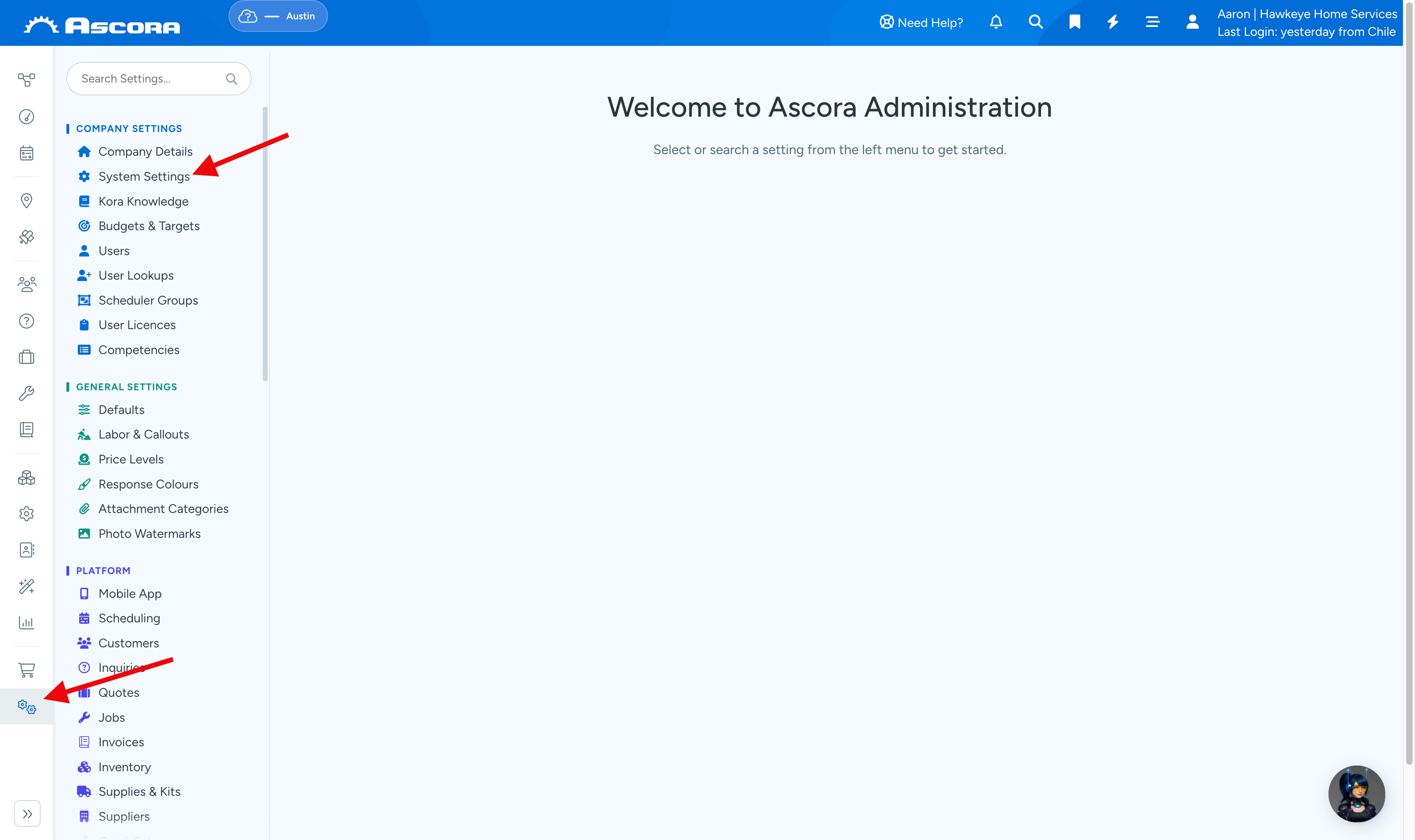
Go to the Security Settings and enable the option Enforce Two-Factor Authentication to apply 2FA for all users in your company.
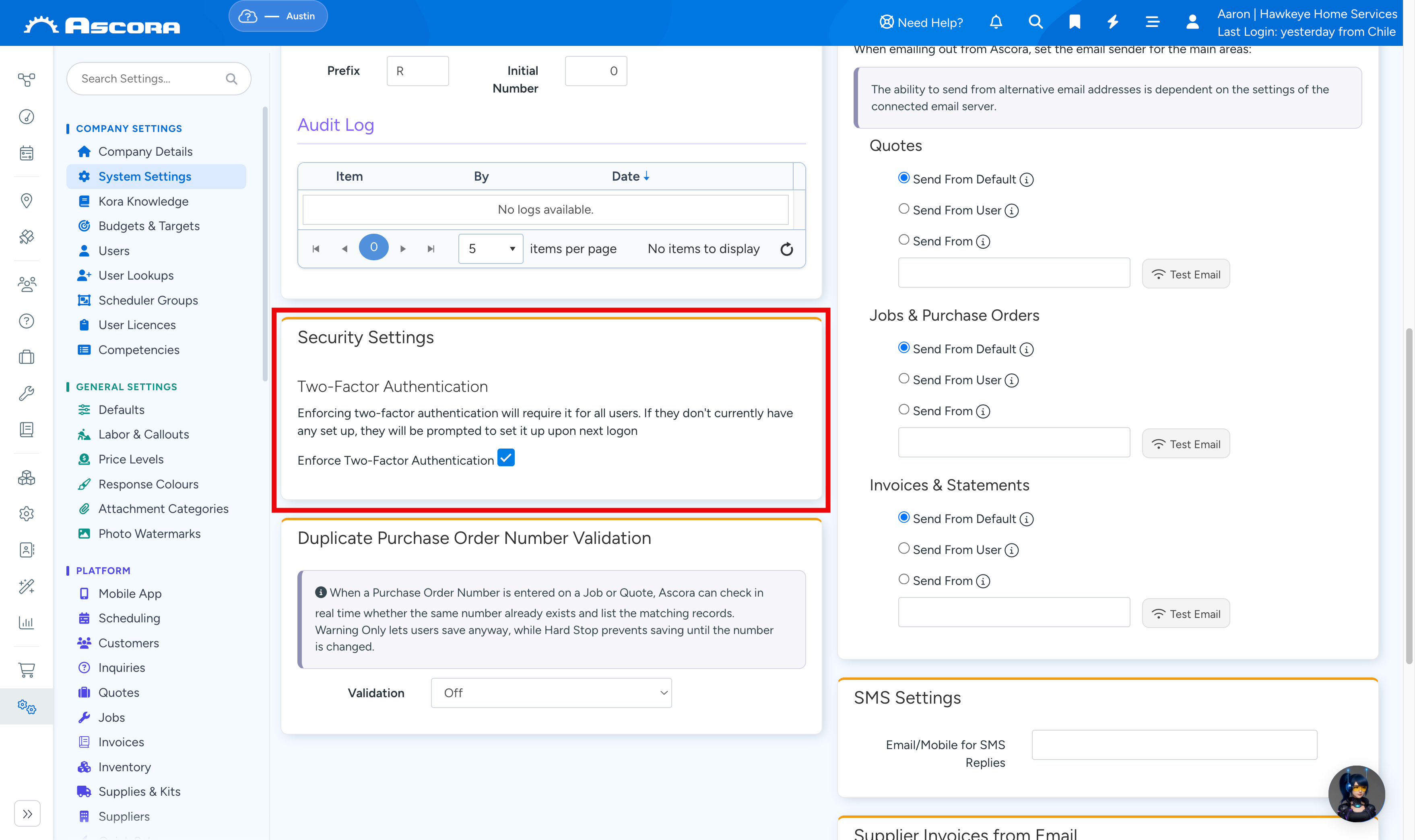
Setting Up Two-Factor Authentication for Individual Users
If your company hasn’t enforced 2FA, individual users can still set it up for their accounts. Here’s how:
Click on your account name in the top-right corner of the screen and select Set Up Two-Factor Authentication.
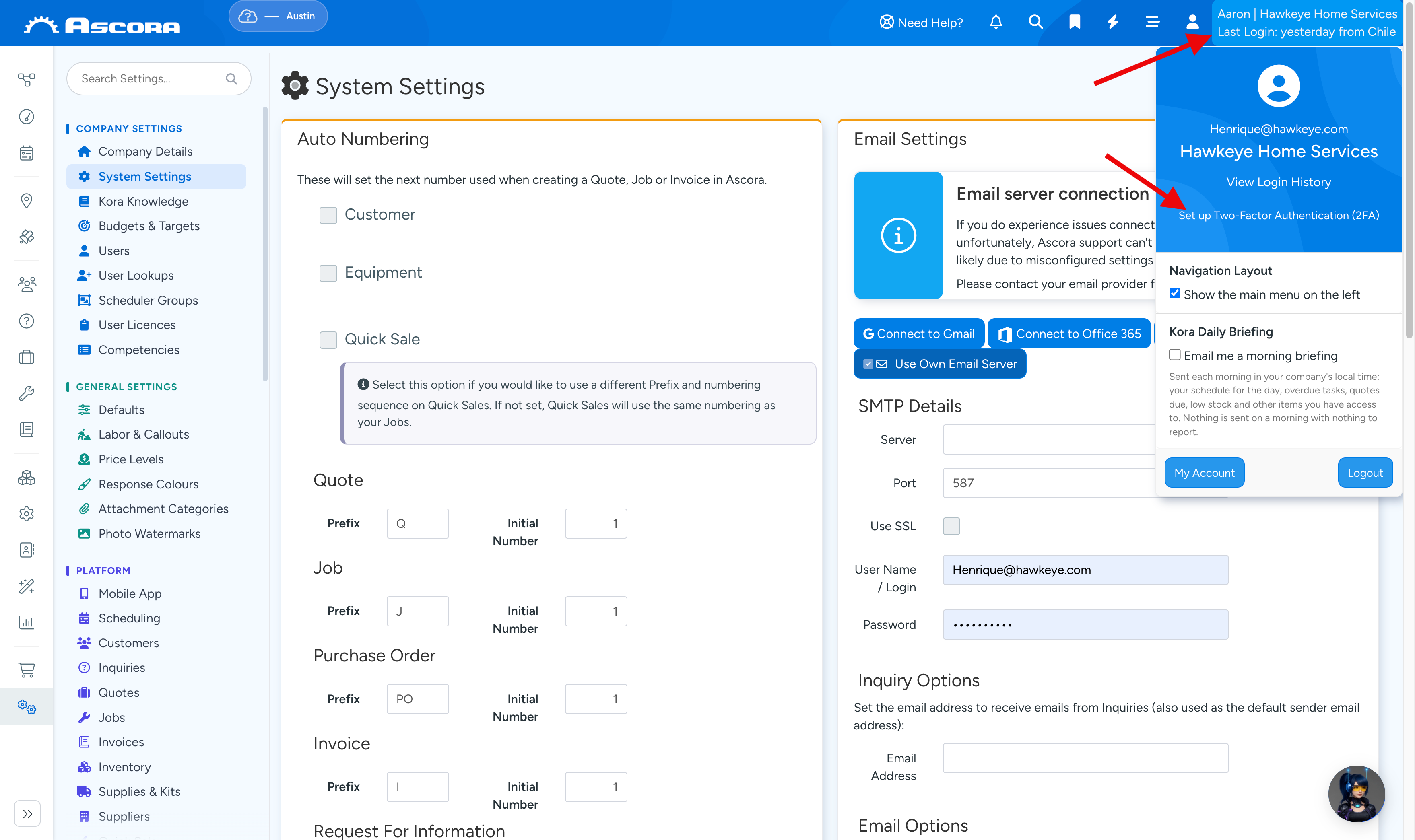
Click on Add Sign-In Method.
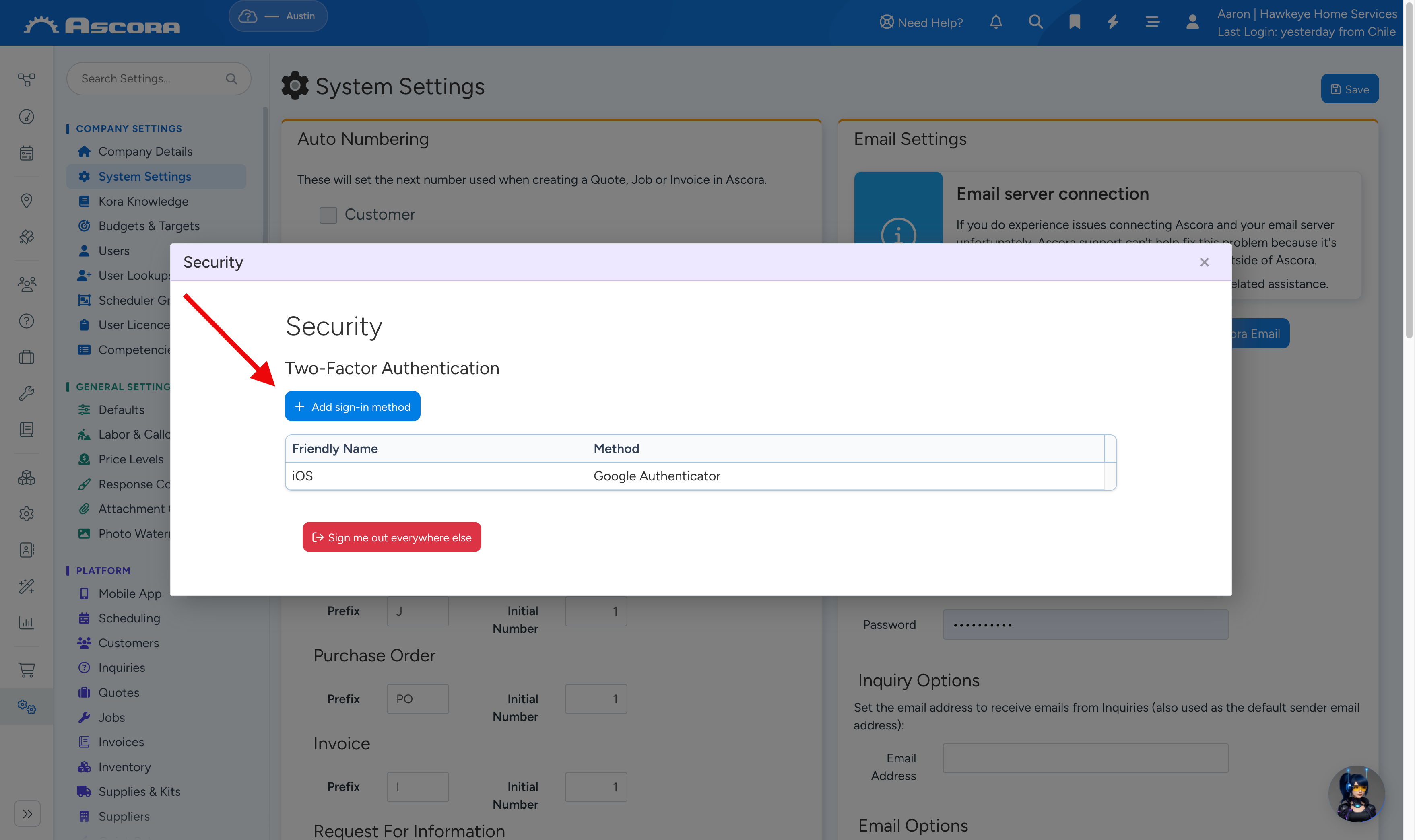
Choose an authenticator app. Ascora supports multiple authenticators, but the preferred options are Microsoft Authenticator and Google Authenticator.
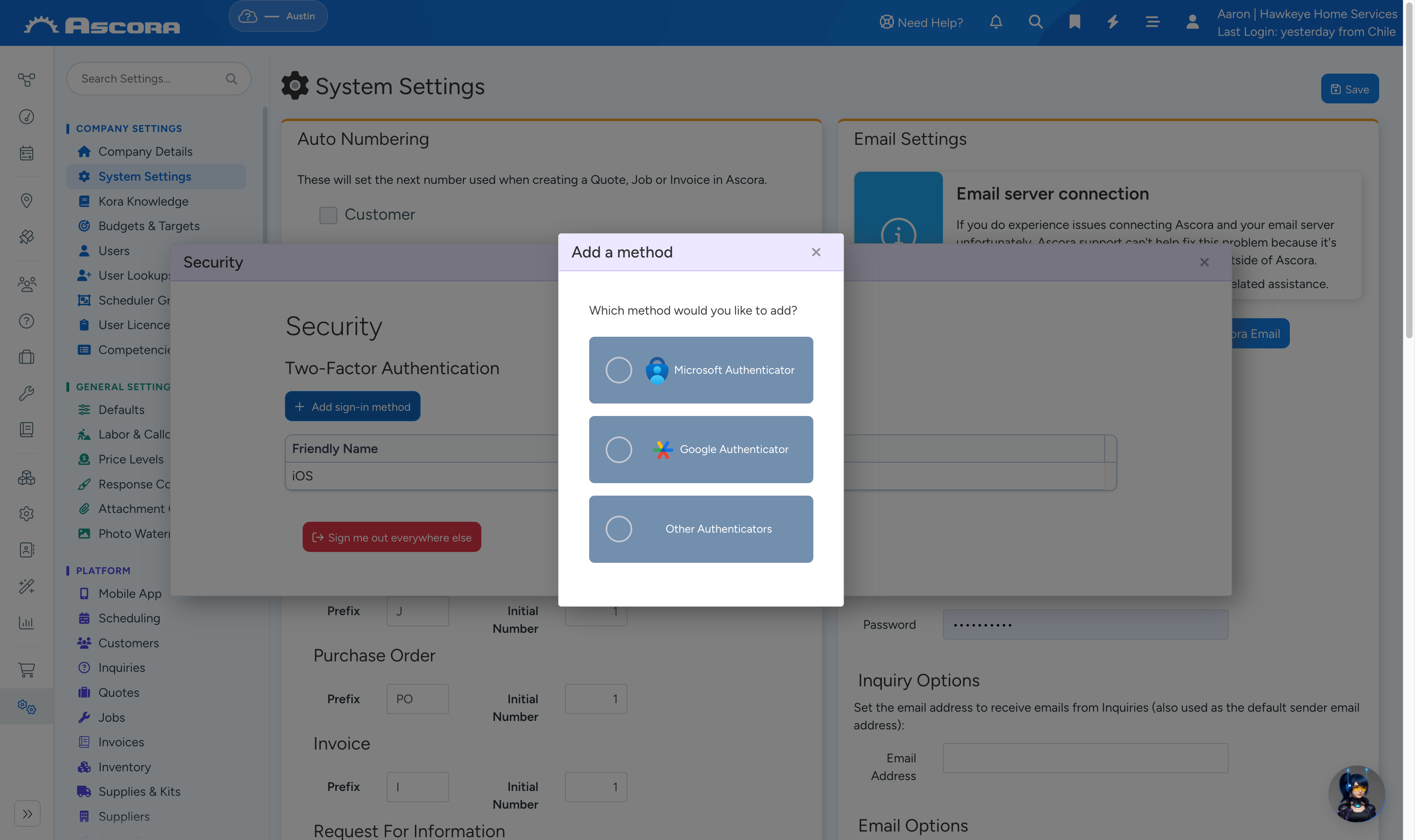
Follow the on-screen prompts to connect your chosen authenticator app. Once connected, verify your one-time password (OTP) code to complete the setup.
Why Use Two-Factor Authentication?
Two-Factor Authentication helps:
- Protect against unauthorized access to your account.
- Add an extra layer of security beyond just a password.
- Ensure peace of mind while managing your business in Ascora.
Set up 2FA today and secure your account with confidence. For further assistance, contact our support team! 🚀
Got a question?
Submit an Idea
💡 Go to Ideas Portal
Got a question?
Submit an Idea
💡 Go to Ideas Portal
Was this article helpful?
Contact support