











How to
A Progress Claim prints from its own kind of document template. An Invoice or Quote template cannot be used for a claim, and a claim template built like an Invoice template prints with empty tables.
This article is for office staff who send Progress Claims and for whoever edits your document templates.
Which template a claim uses
- First, the template chosen on that claim, if one has been chosen.
- Otherwise, the Billing Customer's default: the Default Templates button on the Customer, field Progress Claim.
- Otherwise, your account default: Progress Claim Format.
- If none of these is set, Ascora's inbuilt Progress Claim layout.
Set the default for your account
Go to Administration > Invoices.
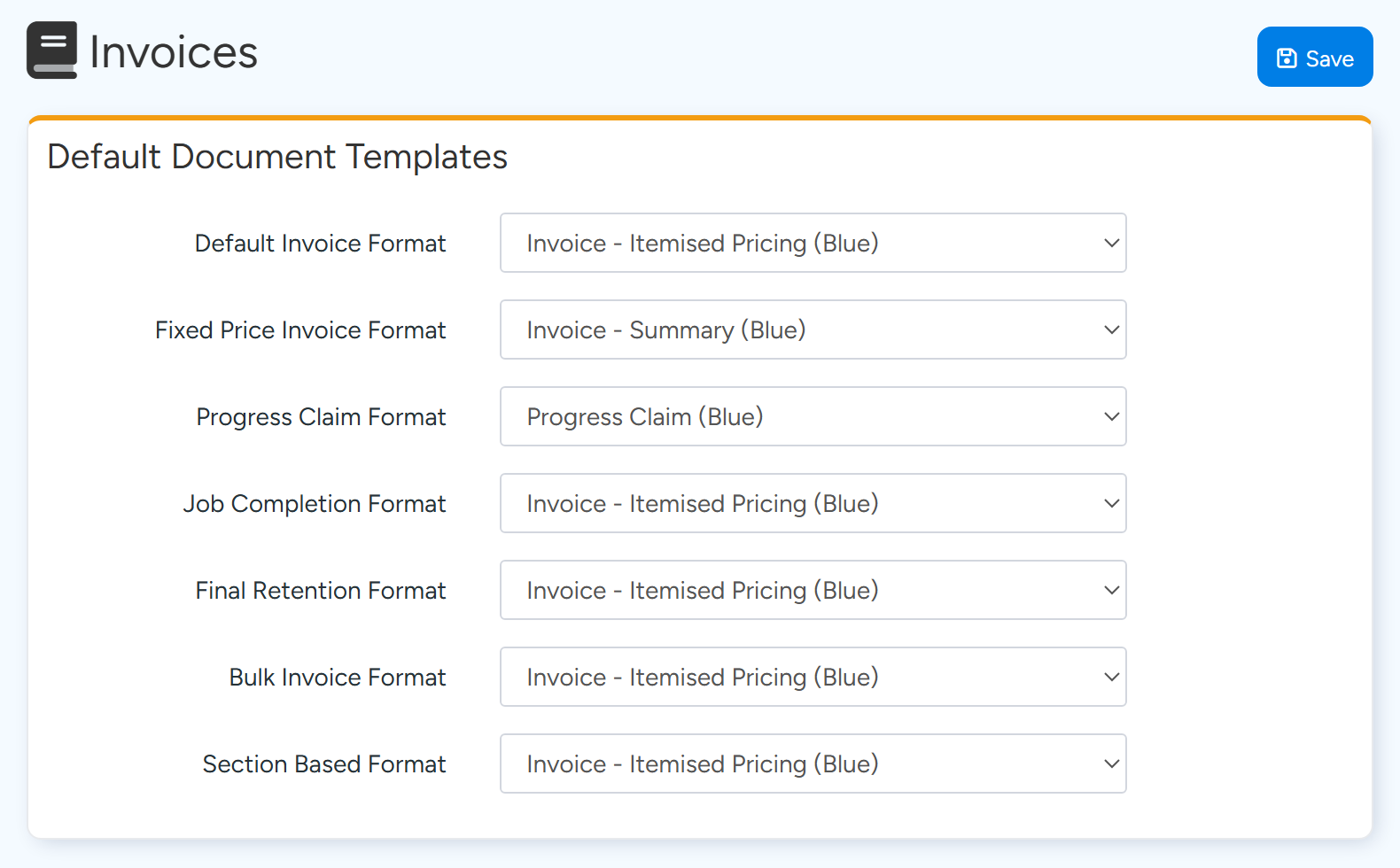
In Default Document Templates, choose a template in Progress Claim Format.
Only templates whose Template Type is Progress Claim are listed.
Progress Claim Format is the template a Progress Claim prints with unless the customer or the claim has its own. Sample data. Select Save.
Choose a template for one claim
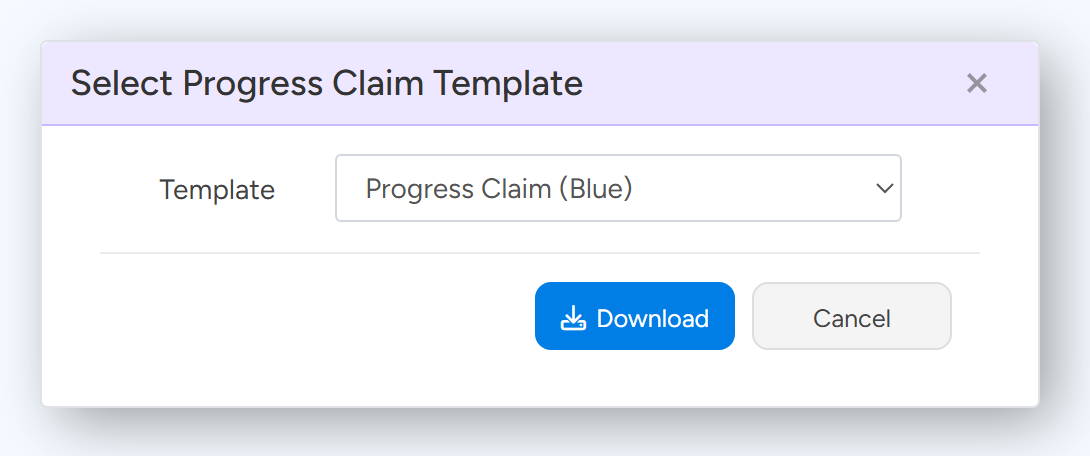
Open the Progress Claim and select Download Progress Claim.
Choose the Template and select Download.
The choice is saved on the claim. Email Progress Claim then sends the claim with the same template.
Download Progress Claim asks which template to use for this one claim. Sample data.
Tip
Two ready-made claim templates are available: Progress Claim (Blue) and Progress Claim (Grey). Find them under Administration > Document Templates on the Starter Templates tab. Each lists this claim and every claim before it, with the contract value, claimed to date and balance remaining.
Why a claim prints without amounts
A Progress Claim does not carry labour, supply or equipment lines. A template that uses the Invoice line table (the Item table) has nothing to print on a claim, so the body comes out empty.
A claim template uses claim tables instead, described below. The quickest fix is to start from one of the starter claim templates and add your own logo and wording.
What a claim template contains
- A table between
TableStart:CurrentClaimandTableEnd:CurrentClaim, which prints one row for each section of this claim. Useful columns areClaimSectionName,ClaimValueContractExTax(contract value),PriorTotalClaimedExTax(claimed before),ClaimValueExTax(this claim),ClaimValueToDateExTaxandClaimSectionBalanceRemainingExTax. - A table between
TableStart:PreviousClaimandTableEnd:PreviousClaim, which prints one row for each earlier claim, withClaimNumber,ClaimNameandTotalClaimedExTax. - A table between
TableStart:CurrentVariationClaimandTableEnd:CurrentVariationClaim, which prints one row for each variation. - Totals such as
ClaimTotalValueContractExTax,ClaimTotalValueExTax,ClaimTotalValueToDateExTaxandClaimTotalBalanceRemainingExTax. - Retention fields such as
ClaimTotalRetentionAmountExTaxValueandClaimTotalLessRetentionExTax. - Most amount fields also have a version ending in
IncTax.
Warning
When a claim includes variations, they print only in the CurrentVariationClaim table. A template without that table leaves the variation rows off the page.
Upload a new or changed template
Go to Administration > Document Templates and select Add New, or open an existing template.
Enter a Template Name and set Template Type to Progress Claim, then save.
A new template must be saved before a file can be uploaded.
Select Upload a new Template and choose your Word file.
The file must be a .docx file. Download Template gives you the current file to edit.
Common questions
My template is not in the Progress Claim Format list.
Its Template Type is not Progress Claim. Open it under Document Templates and check the type.
Do company and bank details print on a claim?
Yes, when the template has the company and bank account fields. They come from Administration > Company Details.
Is there a field for the section number?
Use DisplayOrder, which is the order of the section on the claim.
What happens if I delete the template that is my default?
The default is cleared and claims print with the inbuilt Progress Claim layout until you choose another.