











⌚Importing Timesheets
Keeping accurate records of employee work hours is essential for job costing, payroll, and productivity tracking. Ascora allows you to import timesheet data in bulk, reducing manual data entry and ensuring consistency across projects.
With the Timesheet Import Template, you can:
✔ Quickly upload work hours for multiple employees.
✔ Match timesheet data with specific jobs, quotes, or general activities.
✔ Ensure payroll accuracy by applying correct rates and timesheet rules.
✔ Reduce administrative burden by automating data entry.
This guide walks you through downloading the template, entering timesheet data, importing into Ascora, and troubleshooting errors—so you can spend less time on admin and more time managing your business.
You can import the data into Ascora by using the standard Timesheet Import template.
Import Process
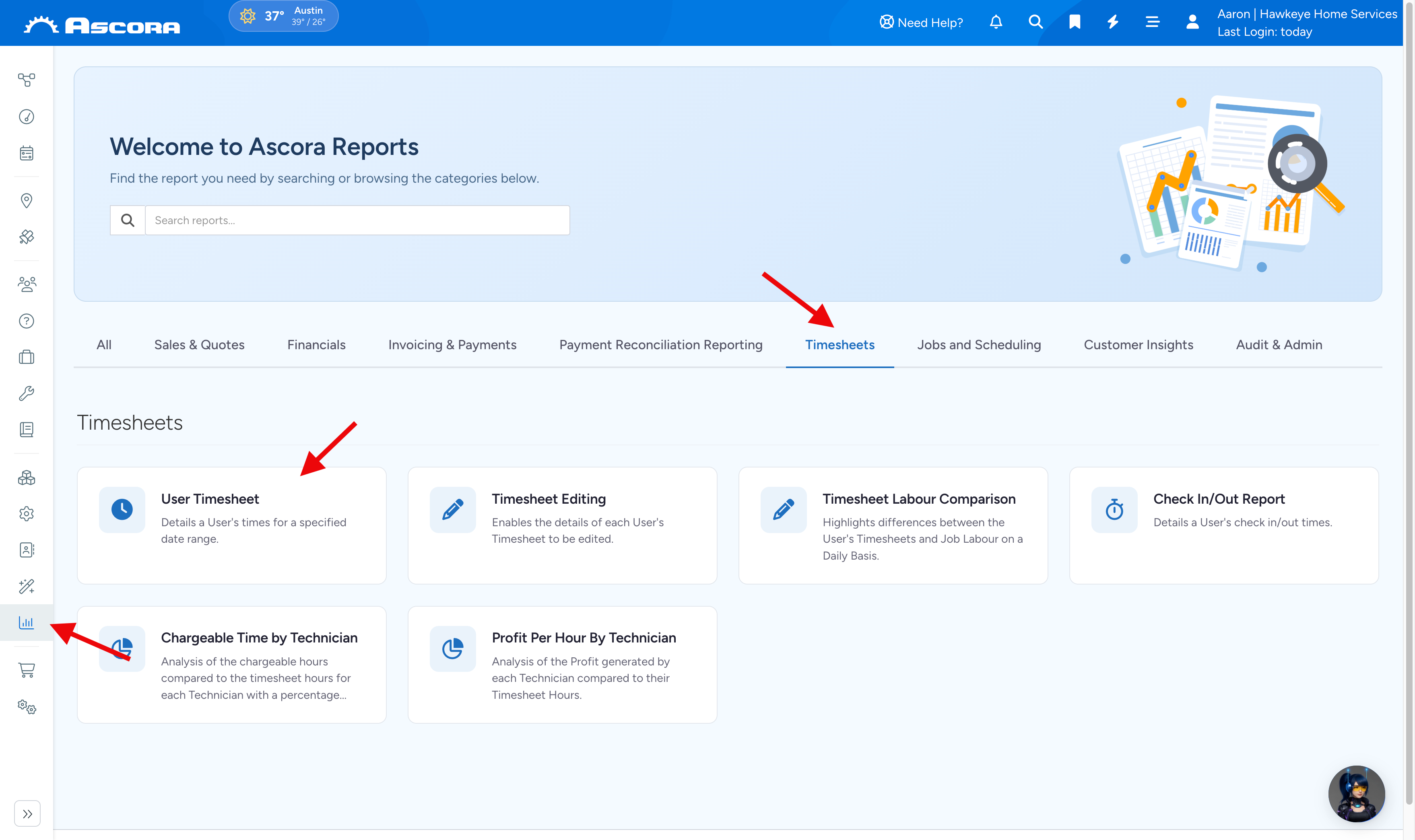
1. Go to Reports → Timesheet → User Timesheet, then click Download Import Template.
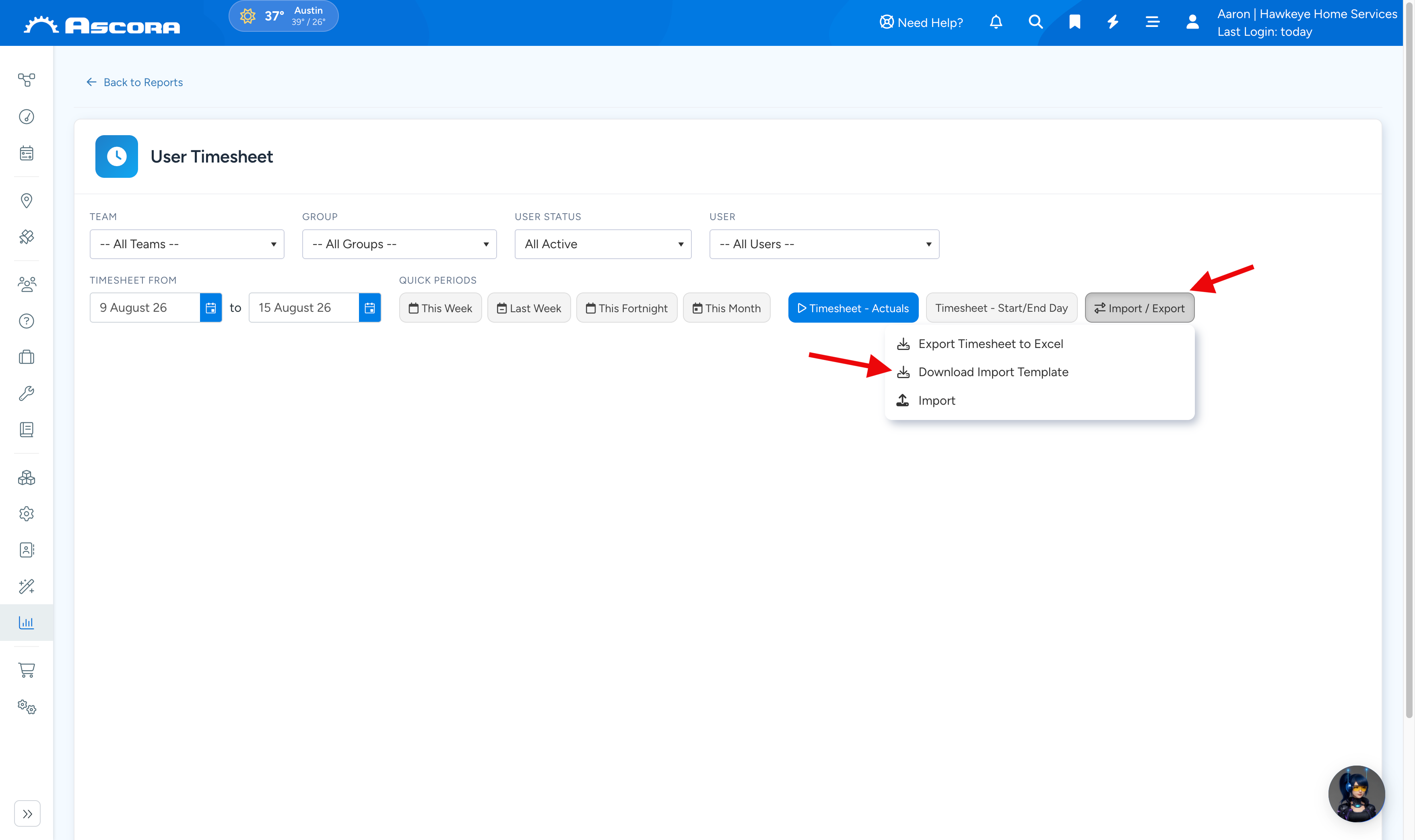
2. Enter the information in the Excel template.

3. After completing the necessary details, go back to Reports → User Timesheet but this time, click Import.
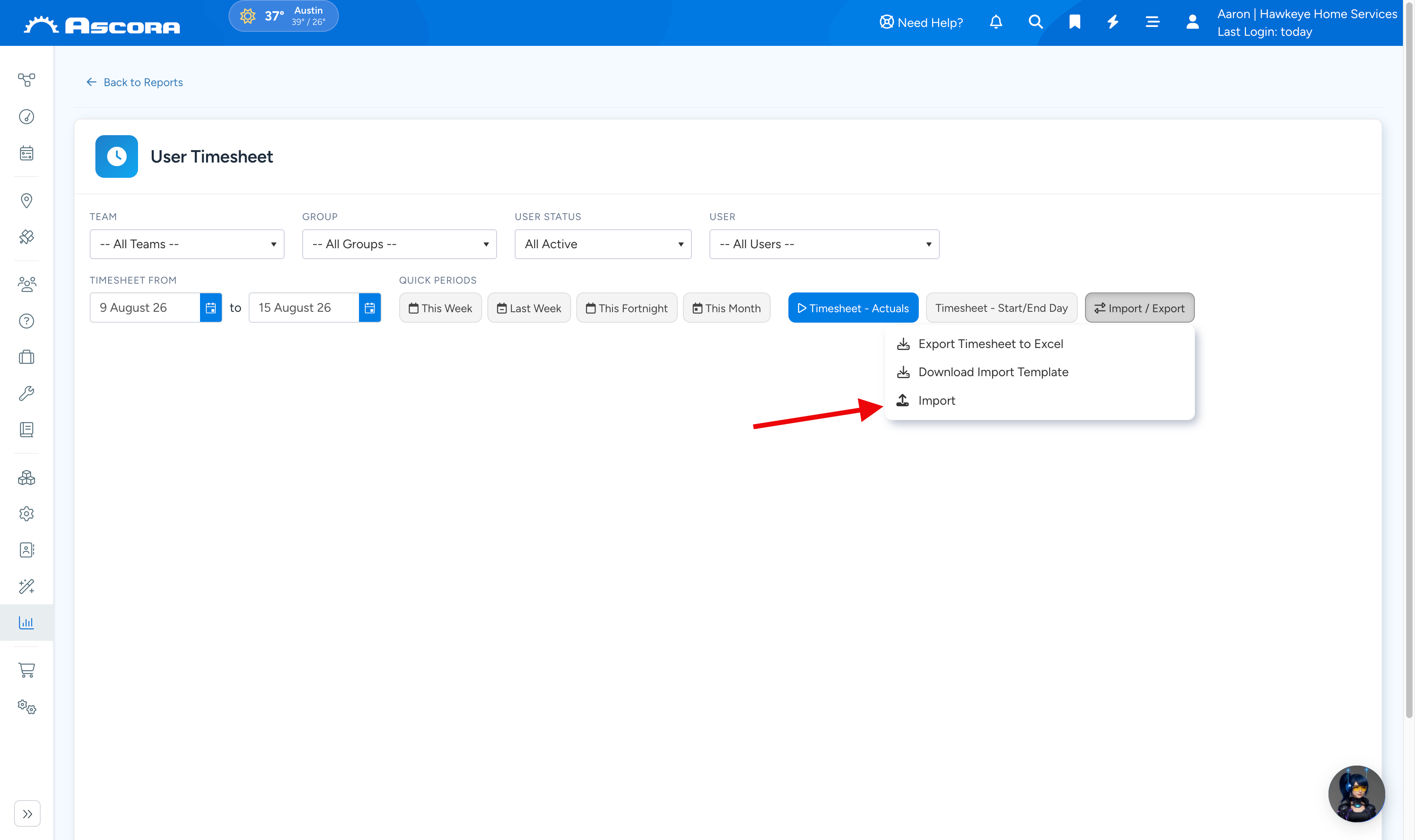
4. Select your Import file and click Open.

5. Once the data is already imported, you would see a window displaying the results of the Import.
Unsuccessful imports will also show the error message and details will be in the pink highlight.
Template Guide
Items highlighted in Yellow are compulsory fields.
| Column | Header/Column Name | Compulsory Field | Default Value If Not Specified | Possible Values (If Applicable) | Notes |
| A | START DATE | Yes | Use format DD/MM/YYYY | ||
| B | START TIME | Yes | Use format HH:MM AM/PM or HH:MM in 24 Hour | ||
| C | END DATE | Yes | Yes/No | Use format DD/MM/YYYY | |
| D | END TIME | Yes | Use format HH:MM AM/PM or HH:MM in 24 Hour | ||
| E | USER | Yes | Must match User name in Ascora | ||
| F | CHECK IN TYPE | General | See Table Below | ||
| G | QUOTE OR JOB NUMBER | If no Quote/Job number is specified or no match is found, Timesheet will be imported as a General timesheet | |||
| H | SECTION NUMBER | The display number of the Section in Ascora (e.g. 01, 02, etc) | |||
| I | STAGE | The Stage name as entered in Ascora | |||
| J | ACTIVITY | Must match the Activity name in Ascora and be applicable for the Stage | |||
| K | INCLUDES MEAL BREAK | False | Yes/No | ||
| L | MEAL BREAK HOURS | Use decimal format (e.g. 7.5). If Includes Meal Break is true and Hours not specified, will use default lunch duration. | |||
| M | RATE TYPE | Normal | See Table Below | ||
| N | LABOUR ROLE | Yes | Must match the Role name in Ascora If left blank, import won't create labour line but only timesheet details | ||
| O | NOTES | ||||
| P | APPLY TIMESHEET RULES | Yes | Put YES if Timesheet Rules apply otherwise, put NO. This is the settings in Administration → Timesheet Rules such as when Time and a Half starts getting charged and when Double Time starts getting charged. |
Check In Type
When importing Timesheet data, the mapping table below can be used to ensure the Timesheet is imported as the expected type.
| General | General |
| Job | Job, Job Check In |
| Quote | Quotation, Quote |
| Travel | Travel |
Rate Type
| Normal | Default |
| Time and a Half | Time and a Half, 1.5 |
| Double Time | Double Time, 2 |
| Double Time and a Half | Double Time and a Half, 2.5 |
Sub Pages
Got a question?
Submit an Idea
💡 Go to Ideas Portal
Was this article helpful?
Contact support