











🚀 Creating a Take-Off Template when Integrated with Ascora
Creating Take-Off Templates is a time saving option to populate Projects with frequently used Measurements. When integrated with Ascora, Measurements can be manually linked to your Ascora Inventory Supplies or Kits.
Creating Take-Off Templates
The two most common approaches to creating Take-off Templates linked to Ascora products are: Copying from an existing Stage or Building a new Take-off Template.
1. Copying an existing Stage to a Take-Off Template
If Measurement Parts are already linked to Ascora Inventory Supplies or Kits, Take-Off Templates are created by Copying an existing Stage in a Project.
- From the Worksheet tab, click Stage Actions
- Click Copy to new Template
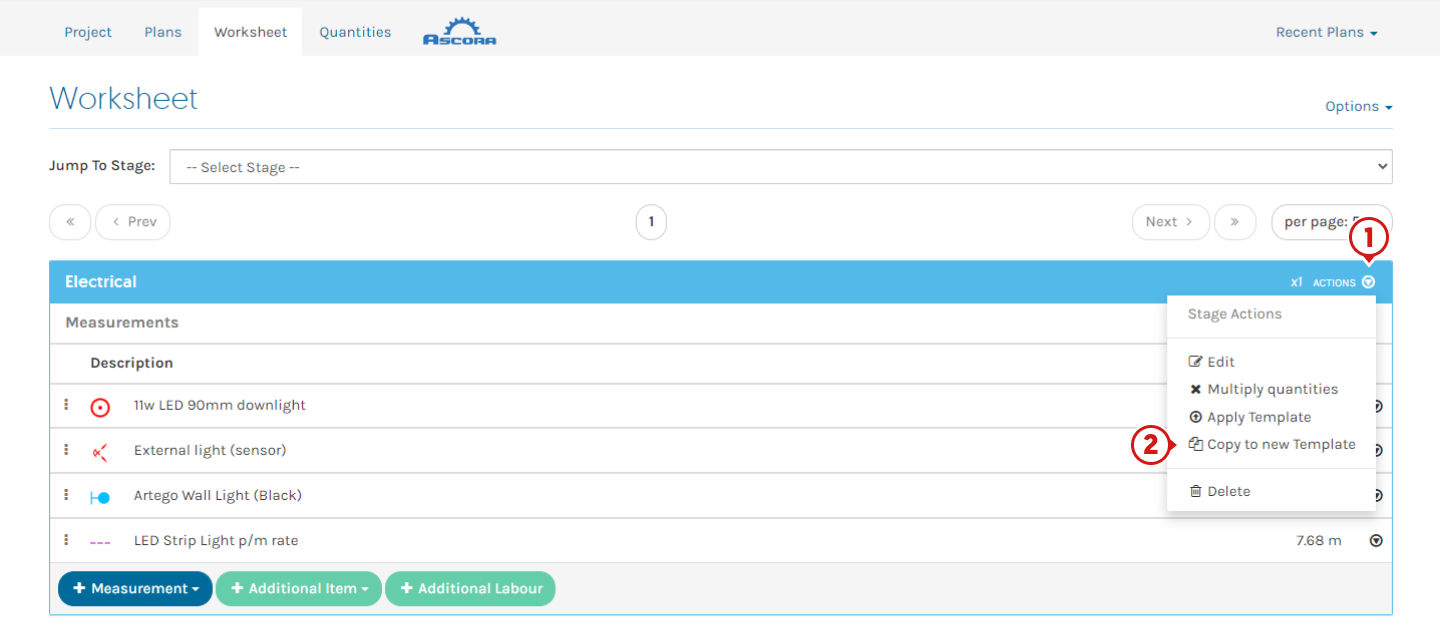
- Rename and click Copy Stage
2. Building a new Take-Off Template
- From the Groundplan home page, navigate to the Take-Off Templates tab
- Click +Take-Off Template
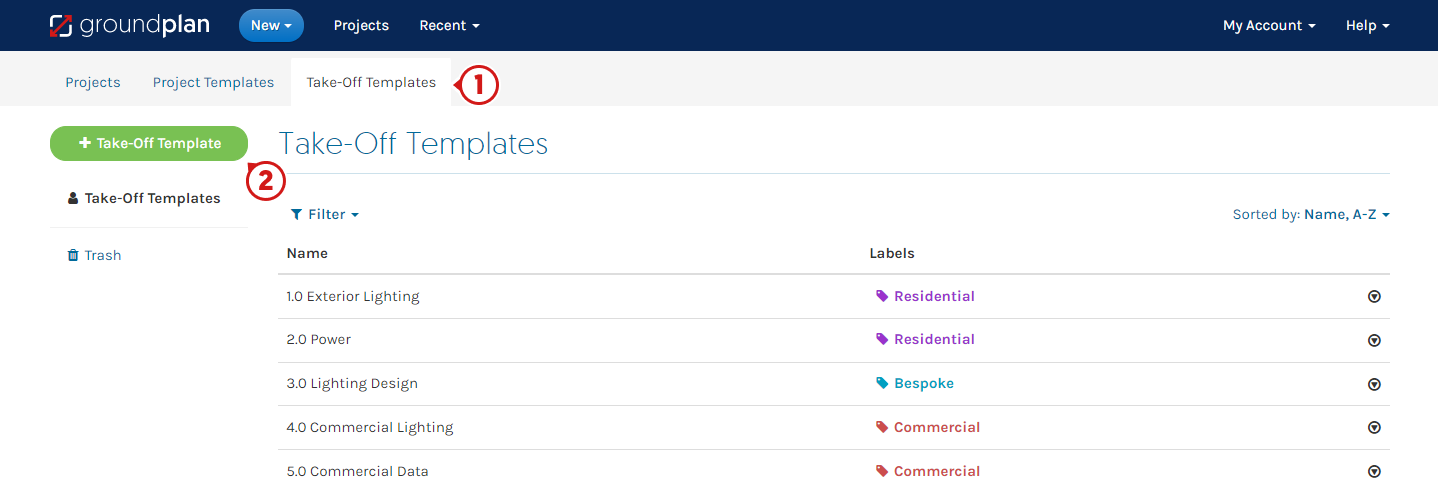
- Enter Template Name and click Create
- Select Measurement Part Type and complete remaining fields
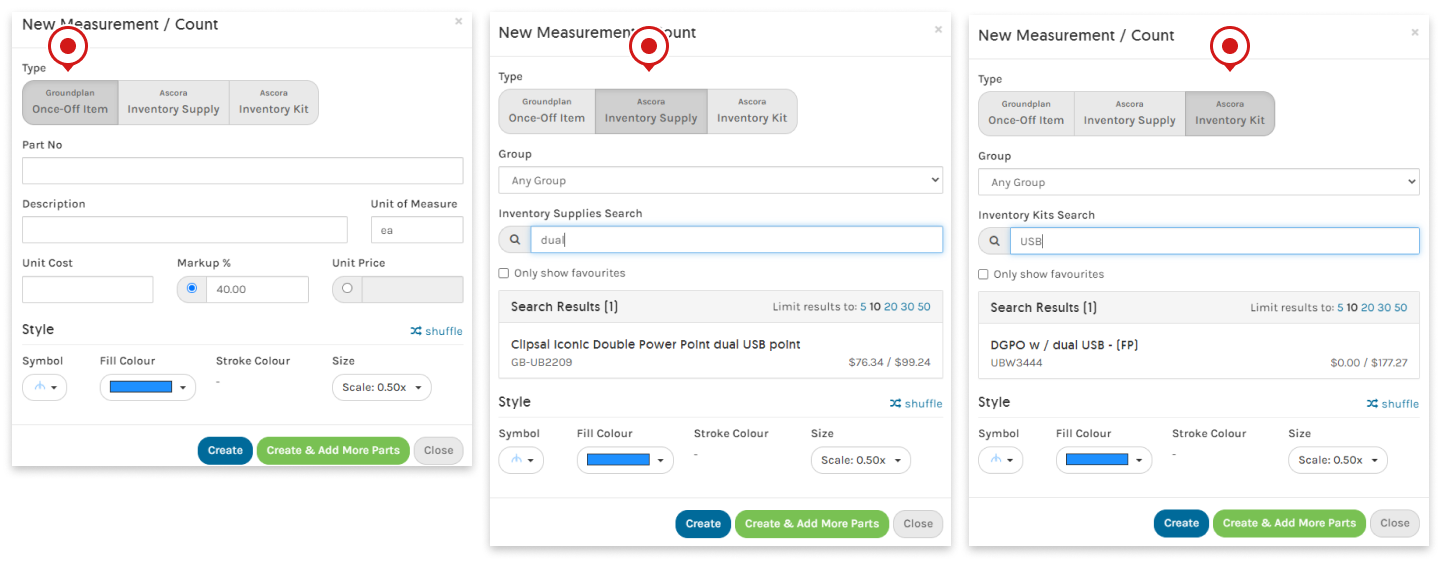
- Click Create. If additional Parts and Labour are required, click Create & Add More Parts
Linking Take-Off Measurements to Ascora Inventory
Take the following steps to link Ascora Products within Take-Off Templates:
- From the Groundplan home page, click Take-Off Templates and click Take-off Template name to amend
- Click Measurement name
- Click Part Actions and click Delete
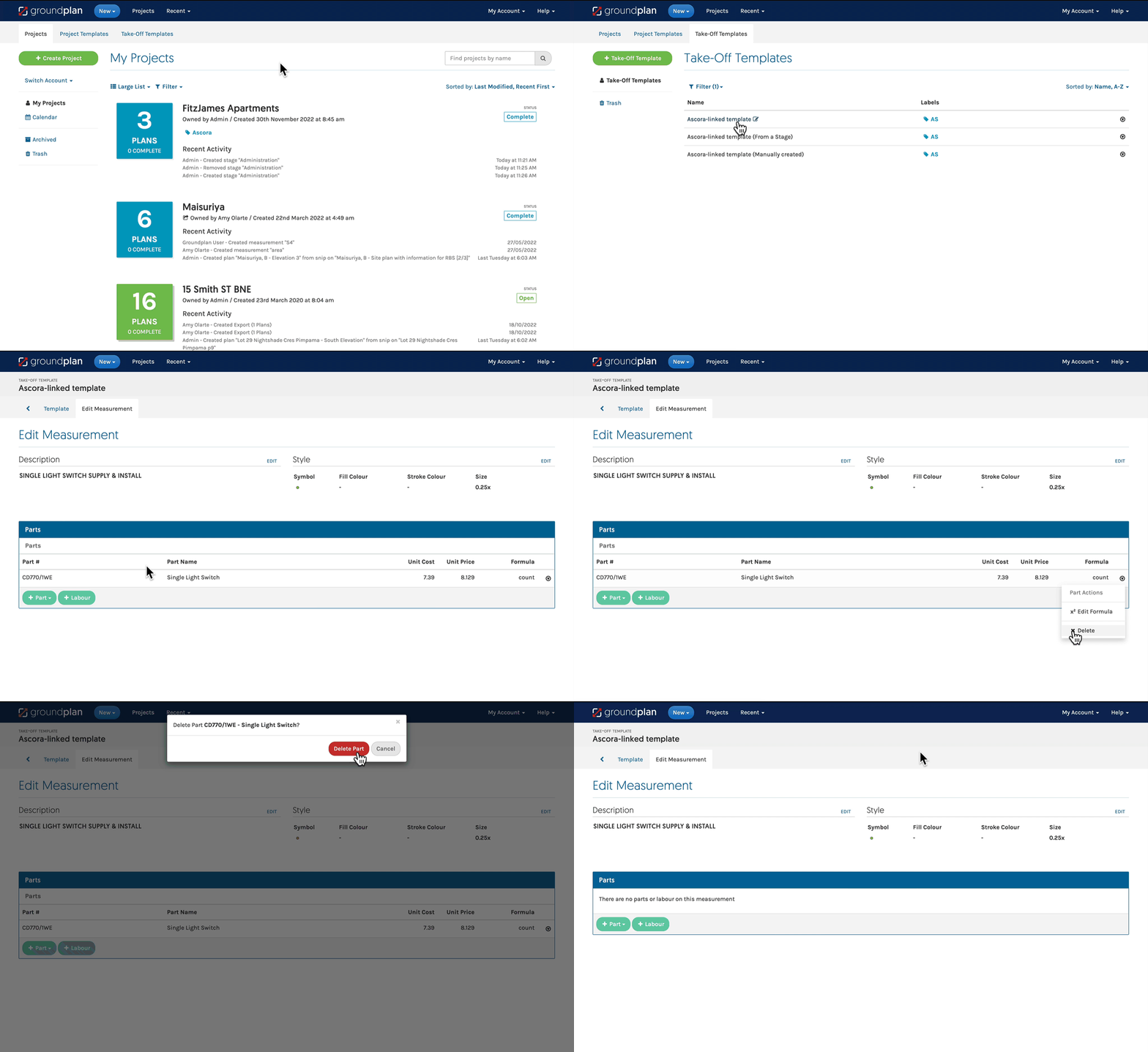
- Click +Part
- Select Ascora Inventory Supply or Ascora Inventory Kit
- Begin your search by entering 3 letters
- Click to select item
- Click Save
.gif)
FAQs
Q: I've updated my pricing in Ascora. Why do my templates still show the old pricing?
A: Inventory Supply and Kit Pricing is saved at the time of Take-Off Template creation.
When the Template is used and items are pushed to a New or an Existing Ascora Quote, the pricing of the Inventory Supply and Kit will update within the Sections Quote in your Ascora account. Within your Groundplan Take-Off Templates, the pricing will stay the same as when first created but show as updated when it reaches Ascora.
Q: I have used the Import Take-off Template function to bring in my Measurements. Do I need to link Ascora Products?
A: Yes. Measurements will need to be manually linked to Ascora Inventory Supply or Kits. You can follow the steps in the GIF above.
Sub Pages
Got a question?
Submit an Idea
💡 Go to Ideas Portal
Was this article helpful?
Contact support