











Guide
Every request to the Ascora API must carry an API key. This article covers where an Administrator makes a key, how a developer sends it, and what the API answers when something is wrong with it.
It is for Administrators and for the developer or integration partner connecting to Ascora.
Make an Integration Key
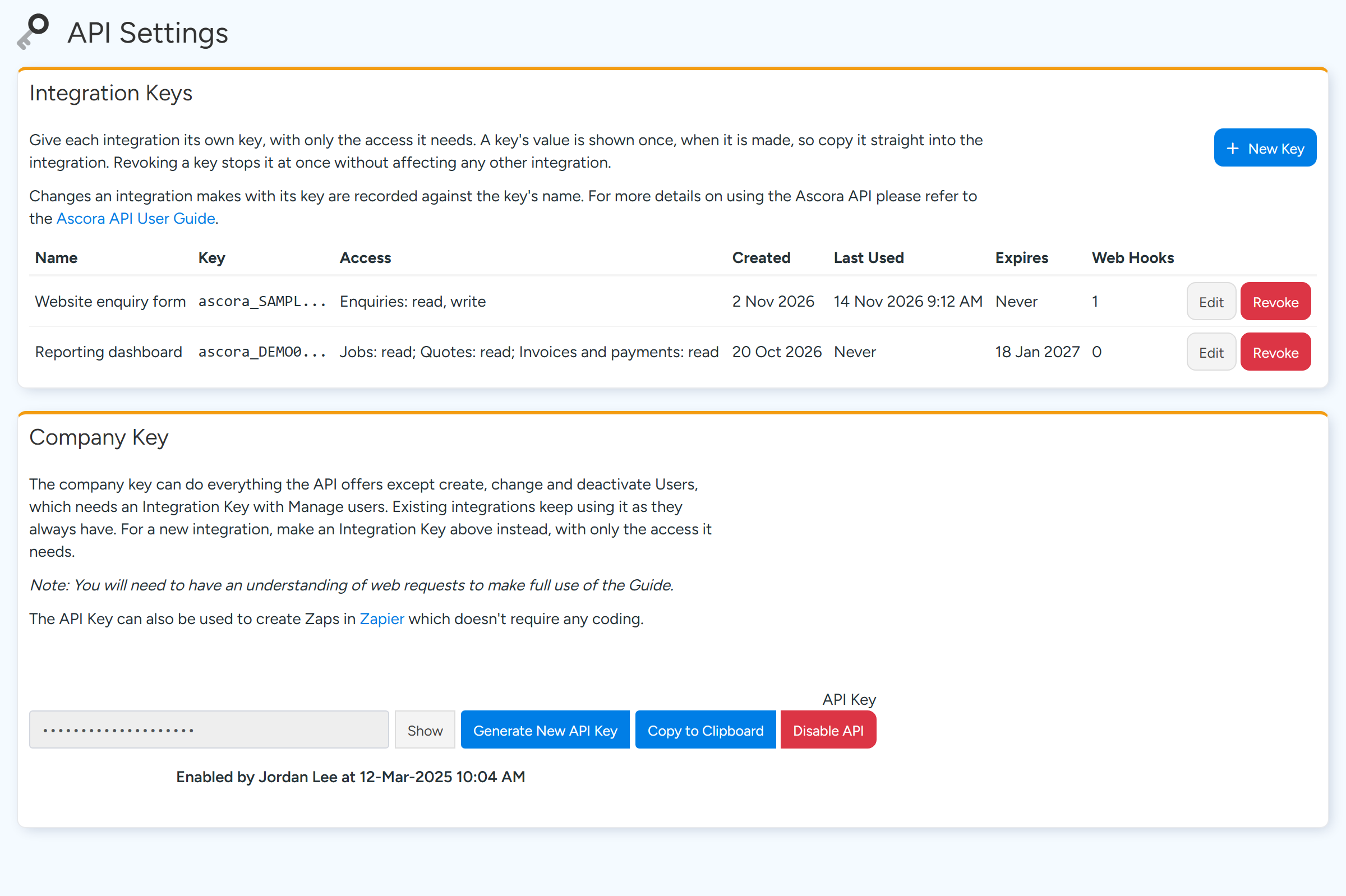
Go to Administration > Integrations & API > API Settings.
Only Administrators can open this page.
Integration Keys are made with New Key. The Company Key is hidden until you select Show. Sample data. In Integration Keys, select New Key.
Give the key a Name that says what uses it, choose when it Expires, and tick Read or Write for each area it needs under Access.
Select Save, then copy the key from the Copy Your New Key window.
This is the only time the key is shown. If it is lost, revoke it and make a new one.
A new Integration Key is shown only once. Copy it before selecting Done. Sample data.

Tip
Give each integration its own key with only the access it needs. Revoke stops one key at once without affecting the others. A revoked key cannot be restored. Edit changes a key's name, access or expiry.
The Company Key
The Company Key section holds the original single key for your account. Integrations already using it keep working. Show reveals it and Copy to Clipboard copies it.
Generate New API Key replaces it, which stops every integration still using the old value. Disable API turns the Company Key off.
For a new integration, make an Integration Key instead.
Send the key with each request
- The address of the API is
https://api.ascora.com.au/. - Add a request header named
Auth. Its value is the key on its own, with nothing in front of it. Do not add the word Bearer. - Integration Keys start with
ascora_and are 50 characters long. Copy the whole key.
What the errors mean
- 400, You need to include Authorization Token header in your request. The
Authheader is missing. A header named Authorization is not read. - 400, Missing Authorization Token. The
Authheader is there but empty. - 403, Unauthorized User. The Company Key is not recognised. It may have been replaced with Generate New API Key, or the API has been disabled.
- 403 with the code API-KEY-INVALID. The Integration Key is not recognised. Check it was copied whole.
- 403 with the code API-KEY-REVOKED or API-KEY-EXPIRED. The key has been revoked or has passed its expiry date. Make a new one.
- 403 with the code SCOPE-REQUIRED. The key does not have Read or Write access to that area. An Administrator can add it with Edit.
- 429 with the code RATE-LIMIT-MINUTE or RATE-LIMIT-HOURLY. Too many requests. Wait for the number of seconds in the
Retry-Afterheader.
Note
The API does not answer 401. A wrong or missing key is a 400 or a 403, as above. A 403 is also returned when the Ascora account itself is locked or inactive.
Rate limits
Limits apply to your whole account, across all of its keys. By default they are 300 writes a minute and 6,000 an hour, and 2,000 reads a minute and 60,000 an hour. A few endpoints have a lower hourly limit of their own.
Each response carries the headers X-RateLimit-Limit-Minute, X-RateLimit-Remaining-Minute, X-RateLimit-Limit-Hour and X-RateLimit-Remaining-Hour, so an integration can slow down before it reaches a limit.
Common questions
Can I see an Integration Key again later?
No. The table shows only the first characters. Revoke the key and make a new one.
How do I know whether a key is being used?
The Last Used column in the Integration Keys table shows when each key was last used.
Which key made a change in Ascora?
Changes made with an Integration Key are recorded against the key's name.