











How to
Two-Factor Authentication (2FA) asks for a 6-digit code from an authenticator app on your phone after your password. A stolen password on its own cannot get into your account.
The first part of this article is for every user. The last part is for Administrators.
Set up your authenticator app
Select your name at the top right, then Set up Two-Factor Authentication (2FA).
The Security window opens.
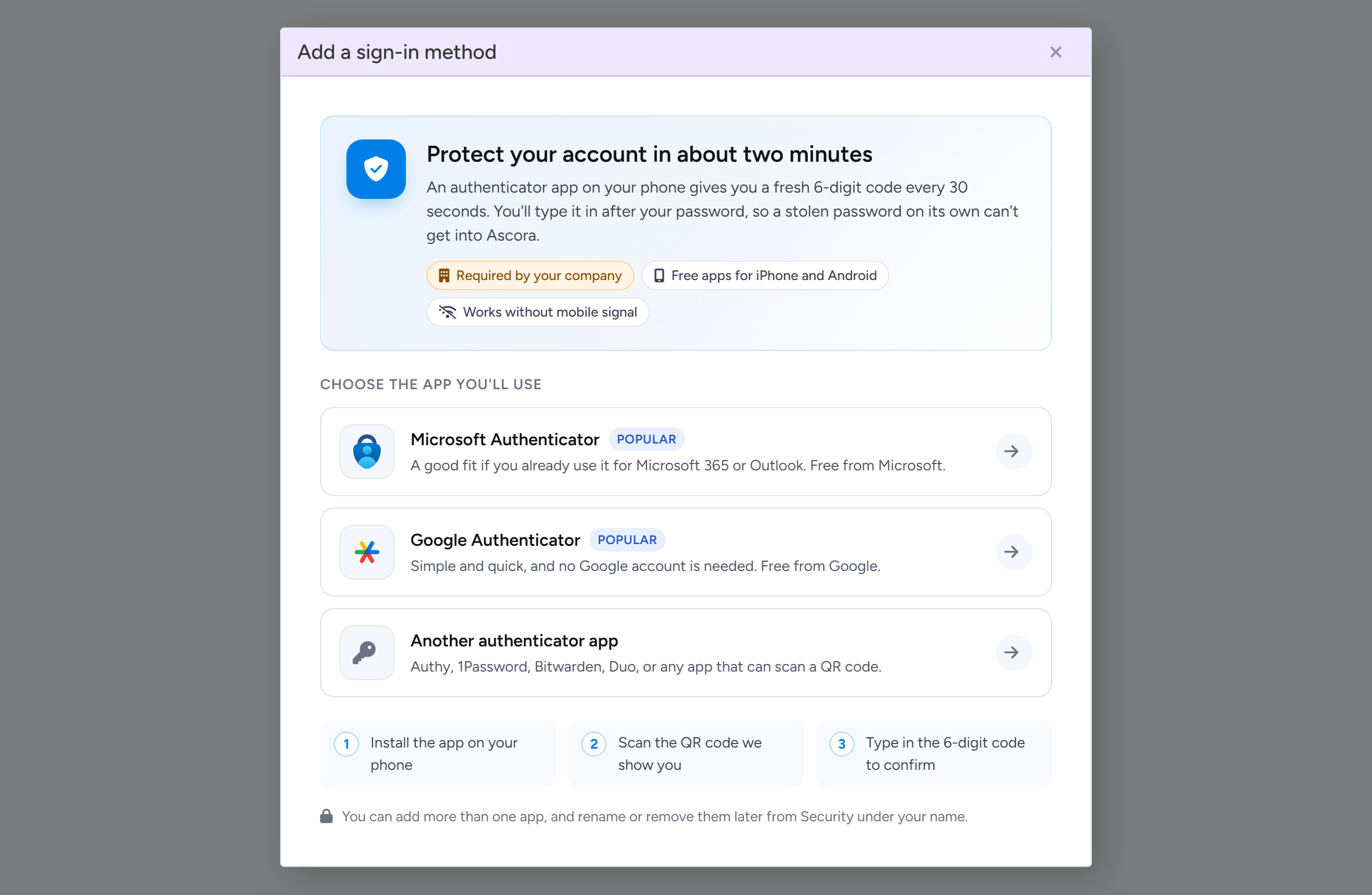
Under Two-Factor Authentication, select Add sign-in method.
Choose Microsoft Authenticator, Google Authenticator or Another authenticator app.
Any app that can scan a QR code works. Install it on your phone first if you do not have one.
Choose the authenticator app you will use. Sample data. Scan the QR code with the app, then type the 6-digit code the app shows to confirm.
Tip
You can add more than one app, for example on a second phone, and rename or remove them later from the same Security window. Codes are not sent by text message.
Sign in with a code
Enter your email and password as usual.
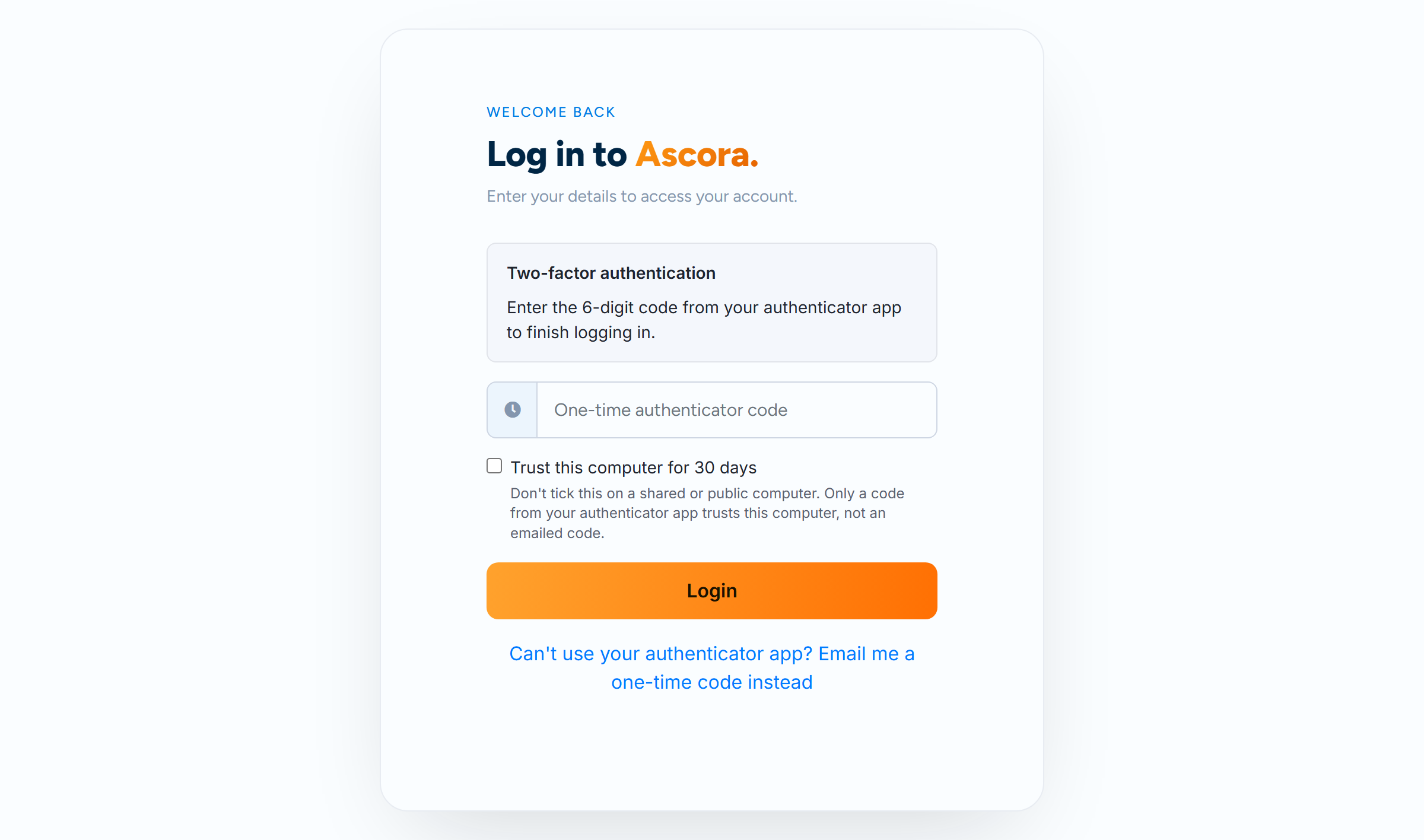
Open your authenticator app and type the 6-digit code shown for Ascora.
The code changes every 30 seconds. If it is refused, wait for the next one.
The code step after your email and password. The link under Login emails a one-time code if you cannot use your app. Sample data. Select Login.
If you cannot use your app
Select Can't use your authenticator app? Email me a one-time code instead under the Login button. A code is emailed to the address you sign in with.
The email has the subject One Time Password and comes from Ascora Support Team. The code lasts 30 minutes. You can ask for another after 30 seconds.
If the email does not arrive, check your junk folder and ask your IT provider to allow mail from the domains ascora.com.au and notify.ascora.io.
If your company enforces 2FA and you have not set up an app yet, Ascora emails you a code the first time, then asks you to set up your app.
Trust this computer
If your company allows it, the code step has a tick box Trust this computer with a number of days. Tick it and you are not asked for a code on that computer and browser again until the days run out.
Only a code from your authenticator app can trust a computer. An emailed code cannot. Do not tick it on a shared or public computer.
Your trusted computers are listed in the Security window under Trusted computers, where you can Revoke one or all of them. Trust also ends when you change your password, when an Administrator resets your 2FA, or when you add or remove an authenticator app.
Warning
Six wrong attempts in a row lock the sign-in for 30 minutes. Wrong passwords and wrong codes count together. An Administrator can unlock you sooner from Administration > Users.
Administrators: require 2FA for everyone
Go to Administration > System Settings and find Security Settings.
Tick Enforce Two-Factor Authentication.
Users who have no app yet are asked to set one up the next time they sign in. Without this ticked, only users who set up an app themselves are asked for a code.
Under Trusted Computers, set Let users trust a computer for to Off, 1 day, 7 days or 30 days.
Select Save.
Note
Enforcement cannot be turned off while SMS, Xero accounting or Xero payroll is switched on for your account.
Administrators: reset a user who has a new phone
Go to Administration > Users and find the user.
Select the phone button on their row, Reset Two-Factor Authentication, then Reset.
The button shows only for users who have an app set up. The reset removes their apps, ends their trusted computers and signs them out.
Ask the user to sign in again.
If 2FA is enforced they are emailed a one-time code and then set up their new app.
Common questions
Can I get my code by text message?
No. Codes come from an authenticator app, with an emailed one-time code as the fallback.
I have a new phone and my old app is gone.
Use the emailed one-time code to sign in, then add the app on your new phone from the Security window and delete the old one. Or ask an Administrator to reset your Two-Factor Authentication.
Why am I asked for a code every time?
Either Trust this computer is switched off for your company, you did not tick it, you signed in with an emailed code, or your browser clears its saved data when it closes.
Can an Administrator choose my method for me?
No. Each user sets up their own app. An Administrator can only reset it.