










📲 How to Create SMS Templates
Ascora simplifies communication by allowing you to send SMS messages from various areas of the system—whether it's Scheduler, Jobs, Quotes, Customers, Invoices, or Enquiries. Mobile users with full access can also send SMS directly from the Ascora mobile app. To streamline this process, you can create and customize SMS templates that automatically include dynamic fields (such as customer names and job details) to ensure your messages are consistent and accurate. The following guide outlines the steps to set up, customize, and use SMS templates effectively within Ascora.
📽 Watch the video guide ⤵
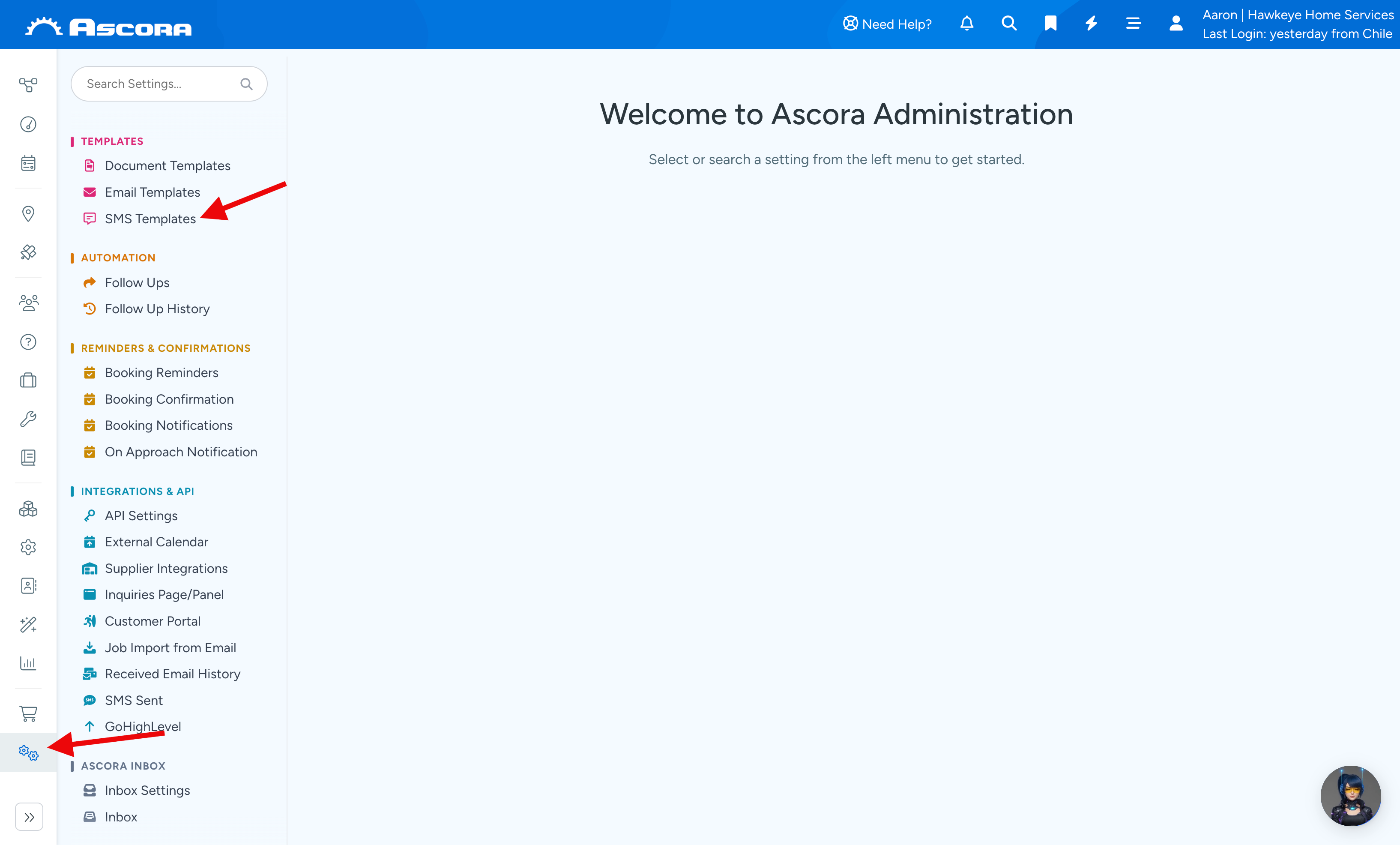
1. To send SMS more quickly, you can set up your SMS templates by going to Administration → SMS Templates.
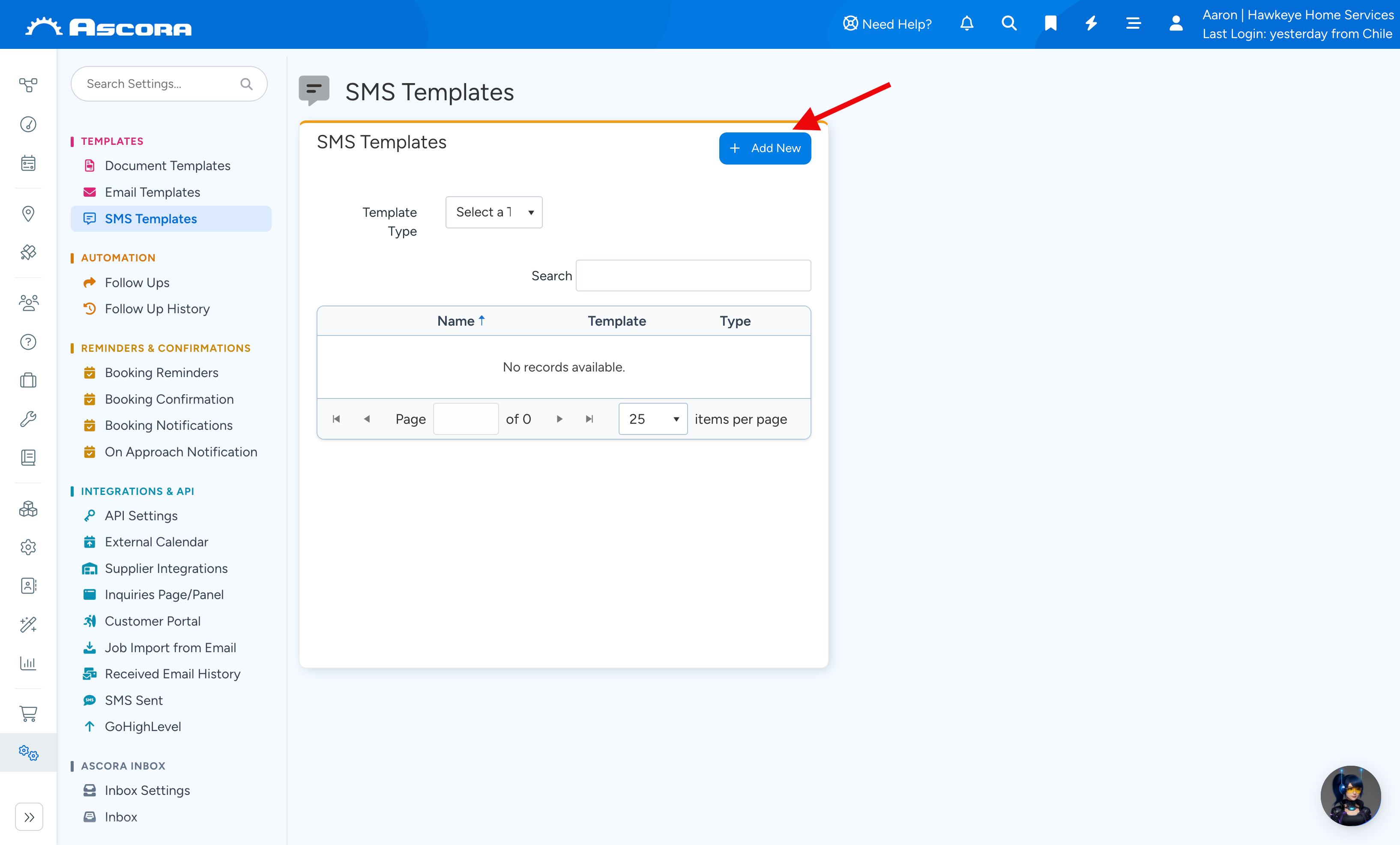
2. Click Add New to start creating your SMS template.
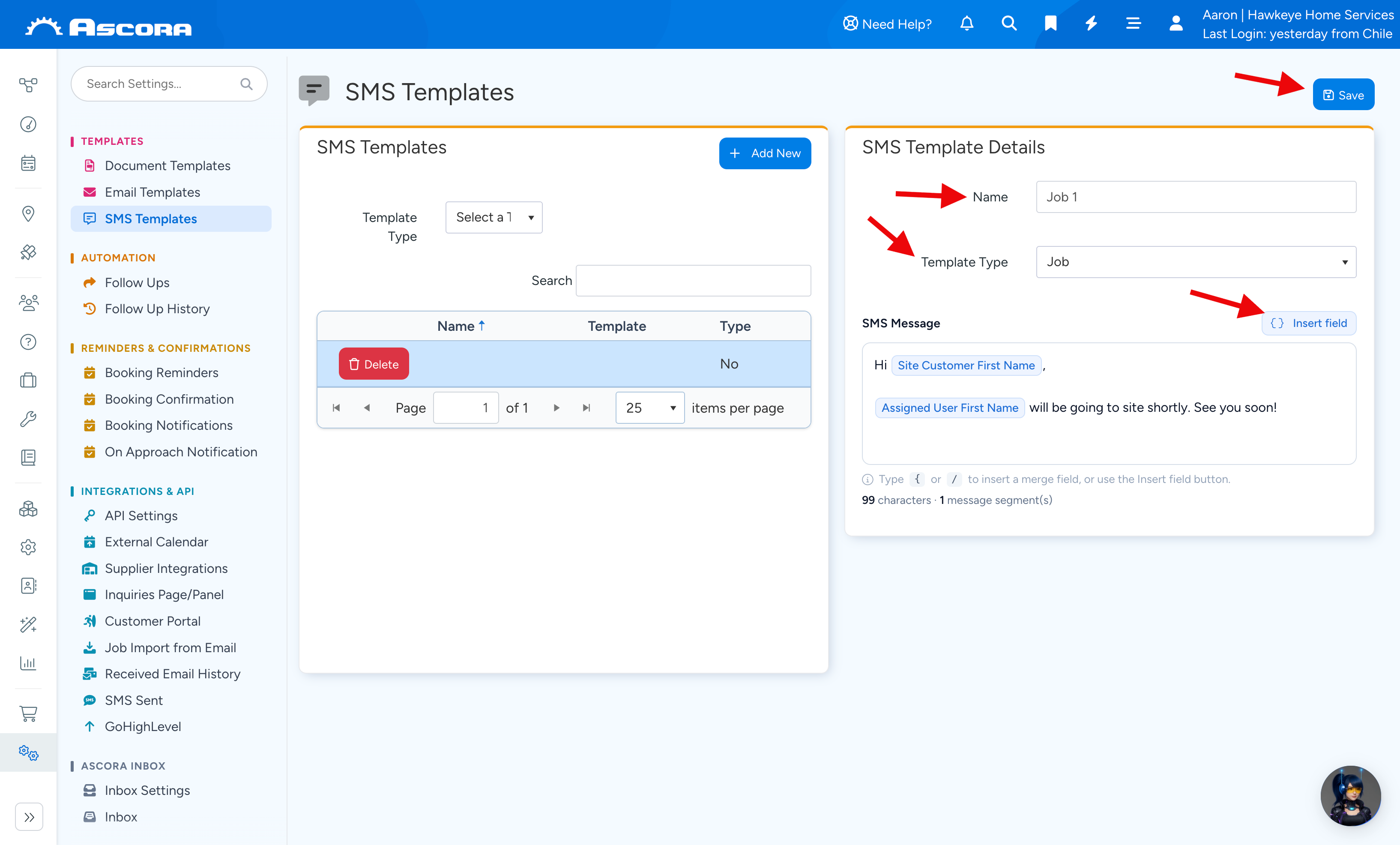
3. Select your Template Type and enter a template name. In this example, we call it Job 1.
You can use dynamic fields by selecting "Insert Field".
Click Save to proceed.
4. After building your SMS template, you can start using it when you need to send a notification via SMS.
You can go to the Job screen and click Send SMS.
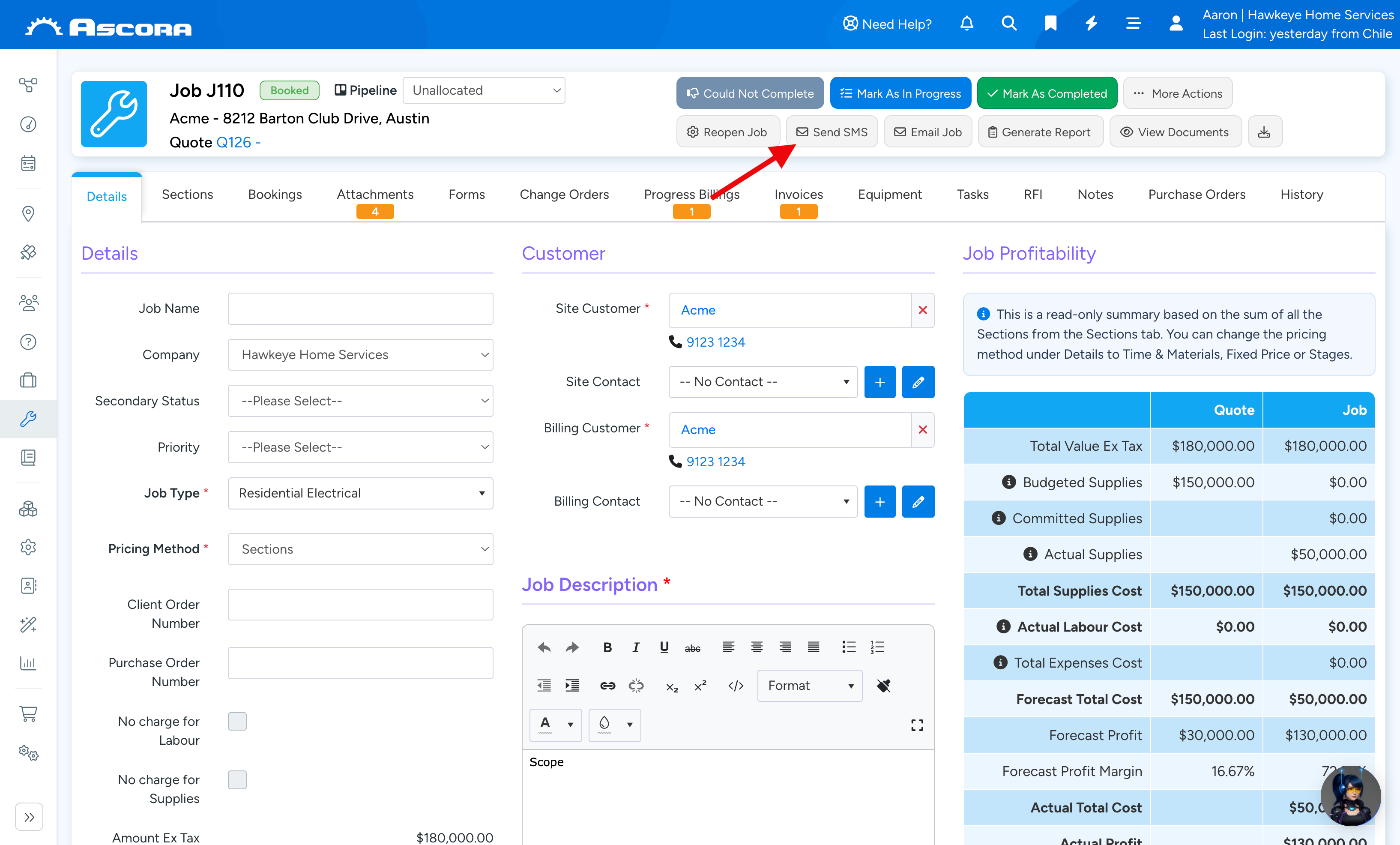
5. Select the template and the message will autopopulate based on the template. Once ready, click Send.
Note: You can repeat steps 2 - 3 to build your SMS templates for the other areas such as Invoice, Enquiry, Customers, etc.
Was this article helpful?
Contact support