











📄 How to Create a New Quote
Creating quotes in Ascora is easy and flexible, with multiple ways to add new quotes to your system. Whether you prefer to create a quote directly from the Quotes Screen, link it to an existing Customer Card, or quickly schedule it from the Scheduler, Ascora offers a range of options to suit your workflow. By choosing the method that works best for you, you can efficiently generate accurate quotes, track job details, and ensure that your clients receive timely and professional proposals. This guide will walk you through each method of creating a new quote, so you can get started quickly and manage your quoting process with ease.
Table of Contents
Create a New Quote from the Quotes Screen
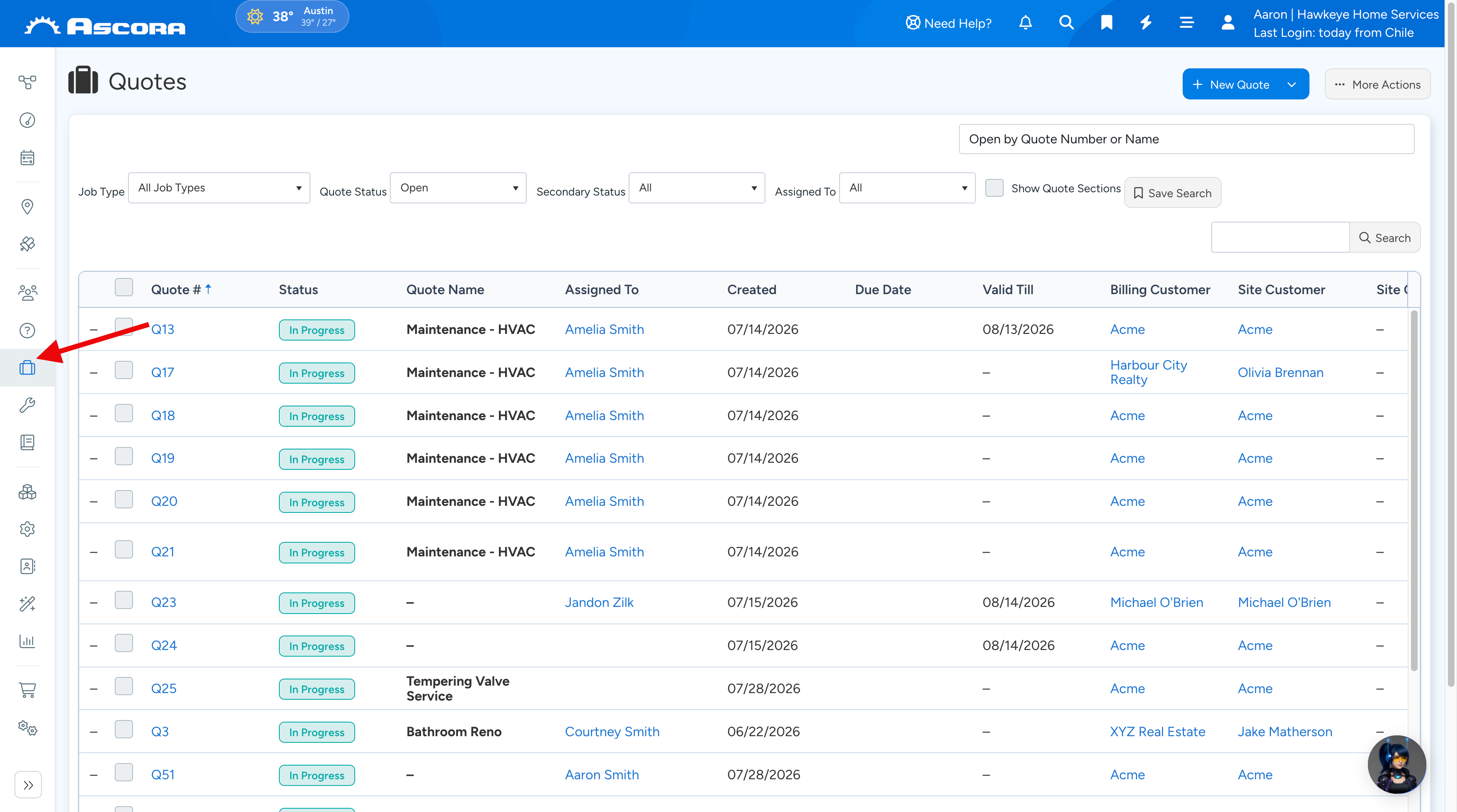
- Choose the Quotes Icon in the side navbar to display the Quotes List.
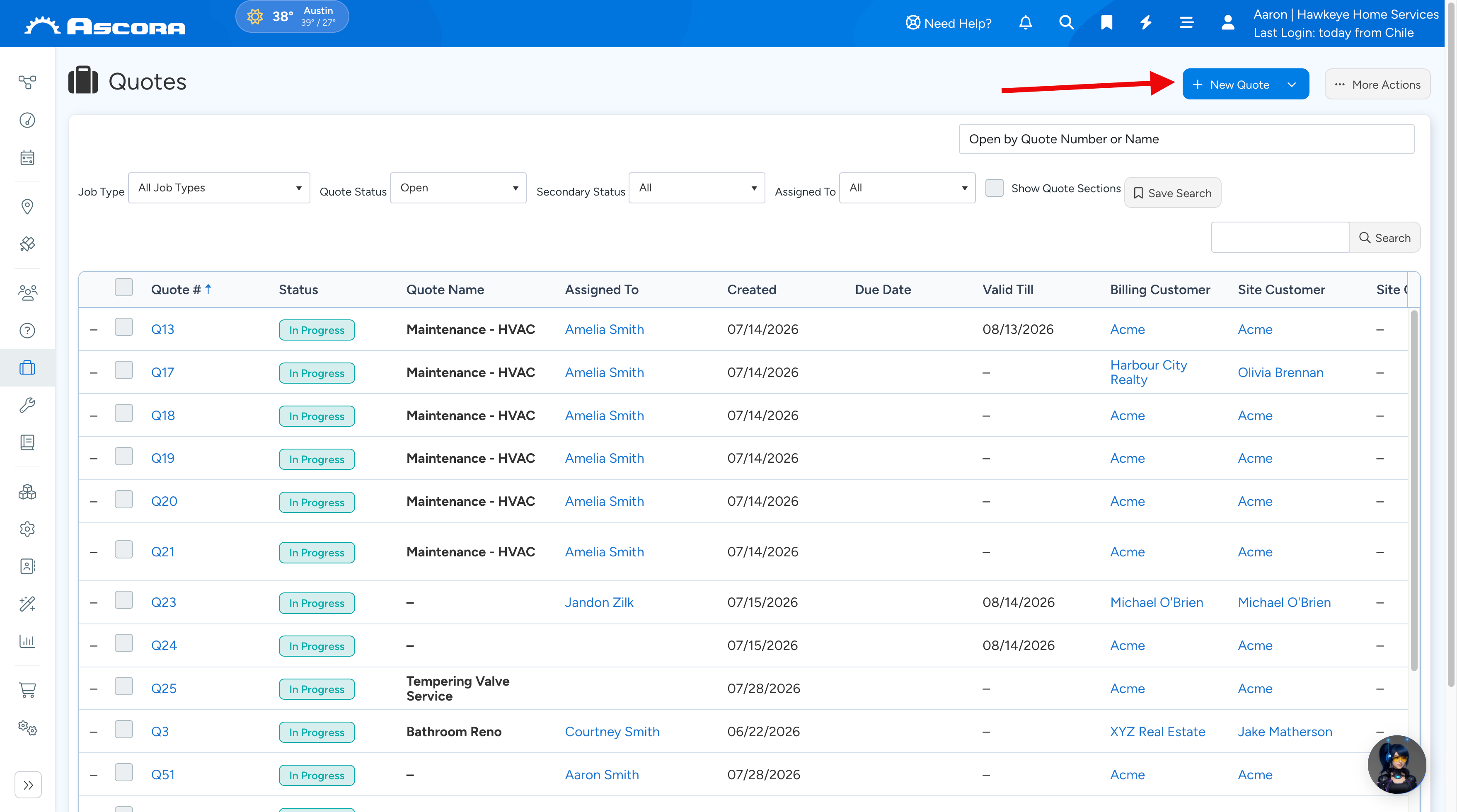
- Click the +New button to create a new Quote. The new Quote Card will display.
Create a New Quote from a Customer Card
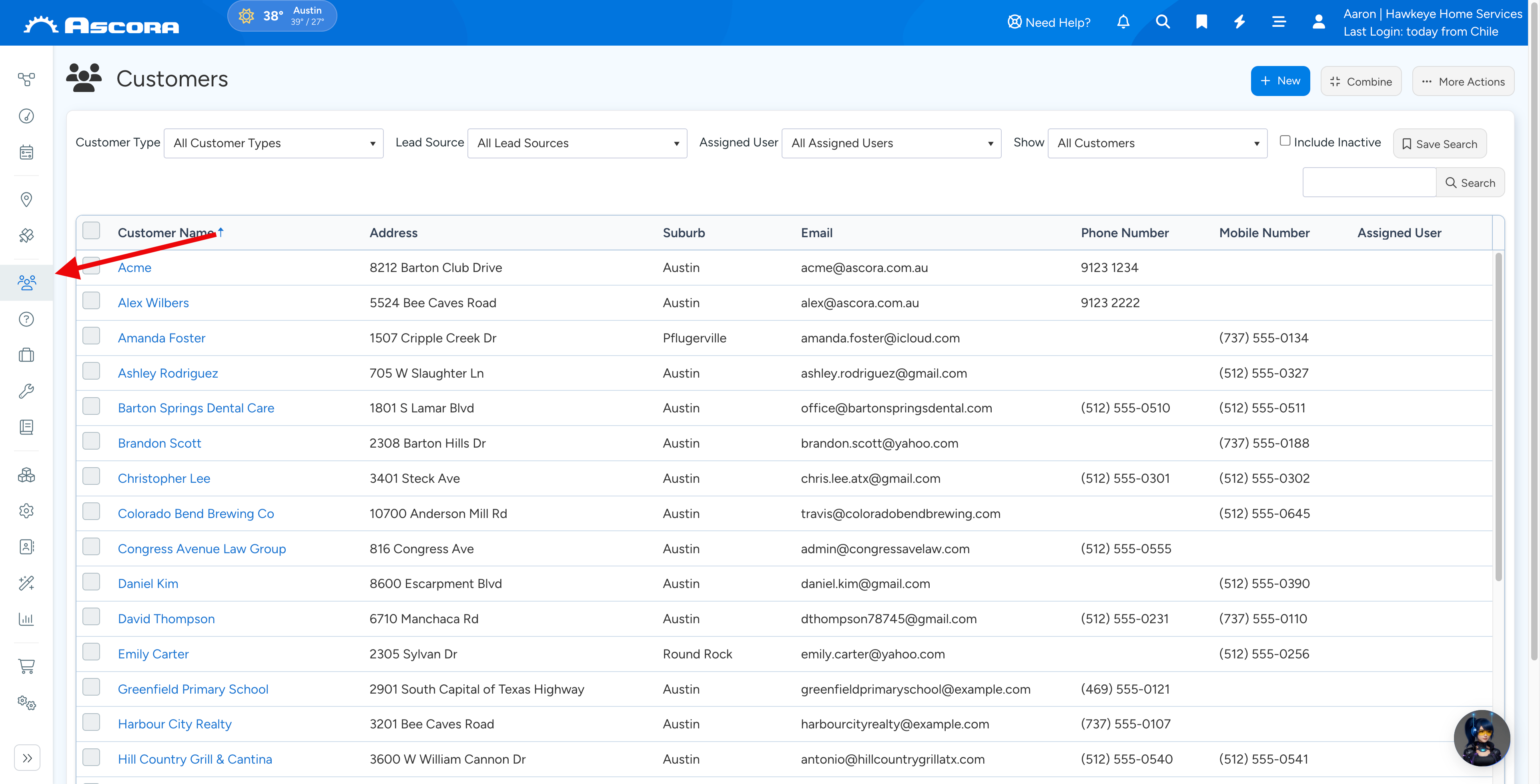
Choose the Customers Icon in the Top Menu to display the Customers List.
1. If the Quote is for an existing Customer, find their record in the Customer List and click the View button located next-to the Customer Name. See Search for a Customer for assistance.
If the Quote is for a new Customer, create a new Customer record by clicking the +New button. See Create a New Customer for assistance.
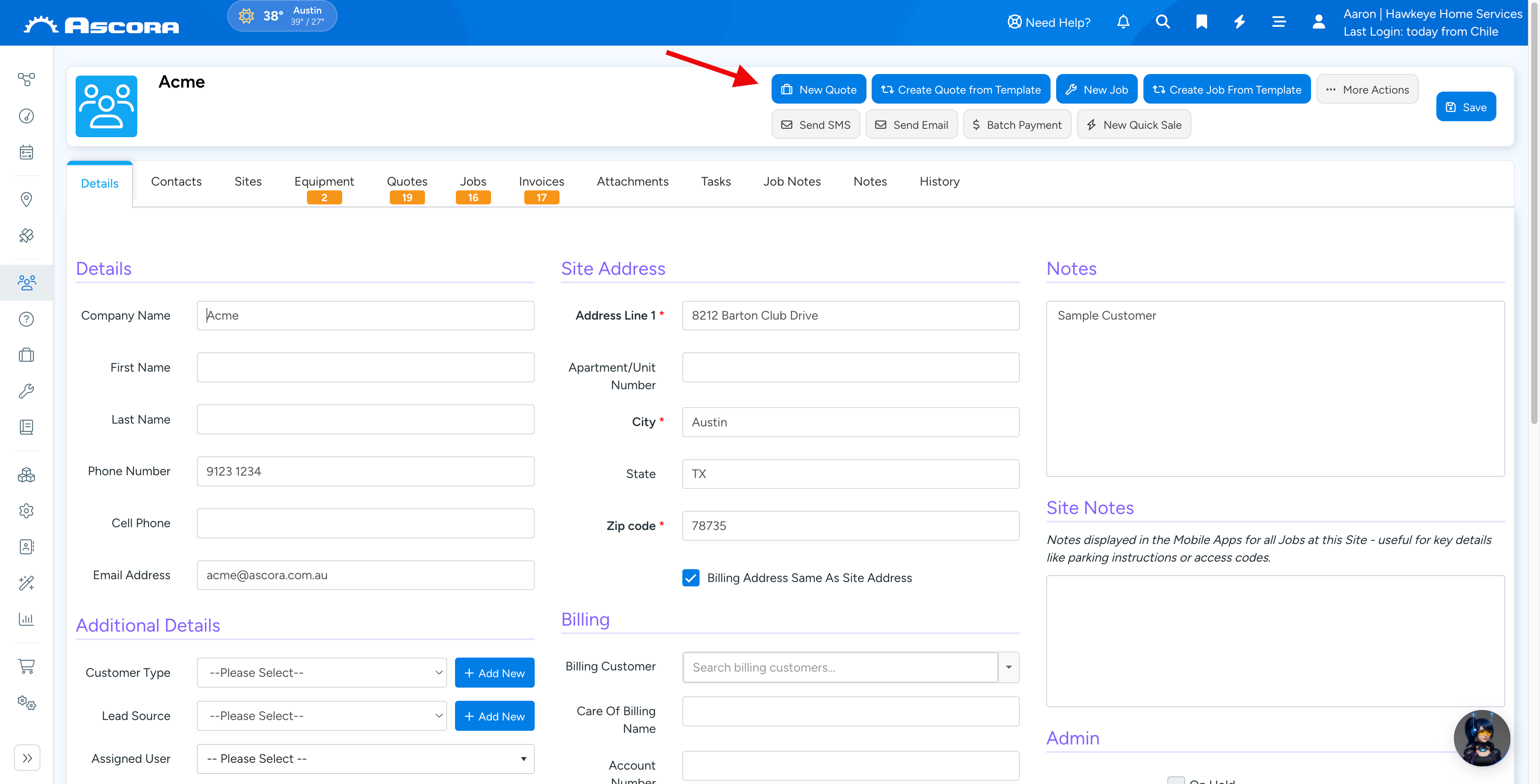
2. Click the New Quote button to create a new Quote. The new Quote Card will display.
Create a New Quote from the Scheduler
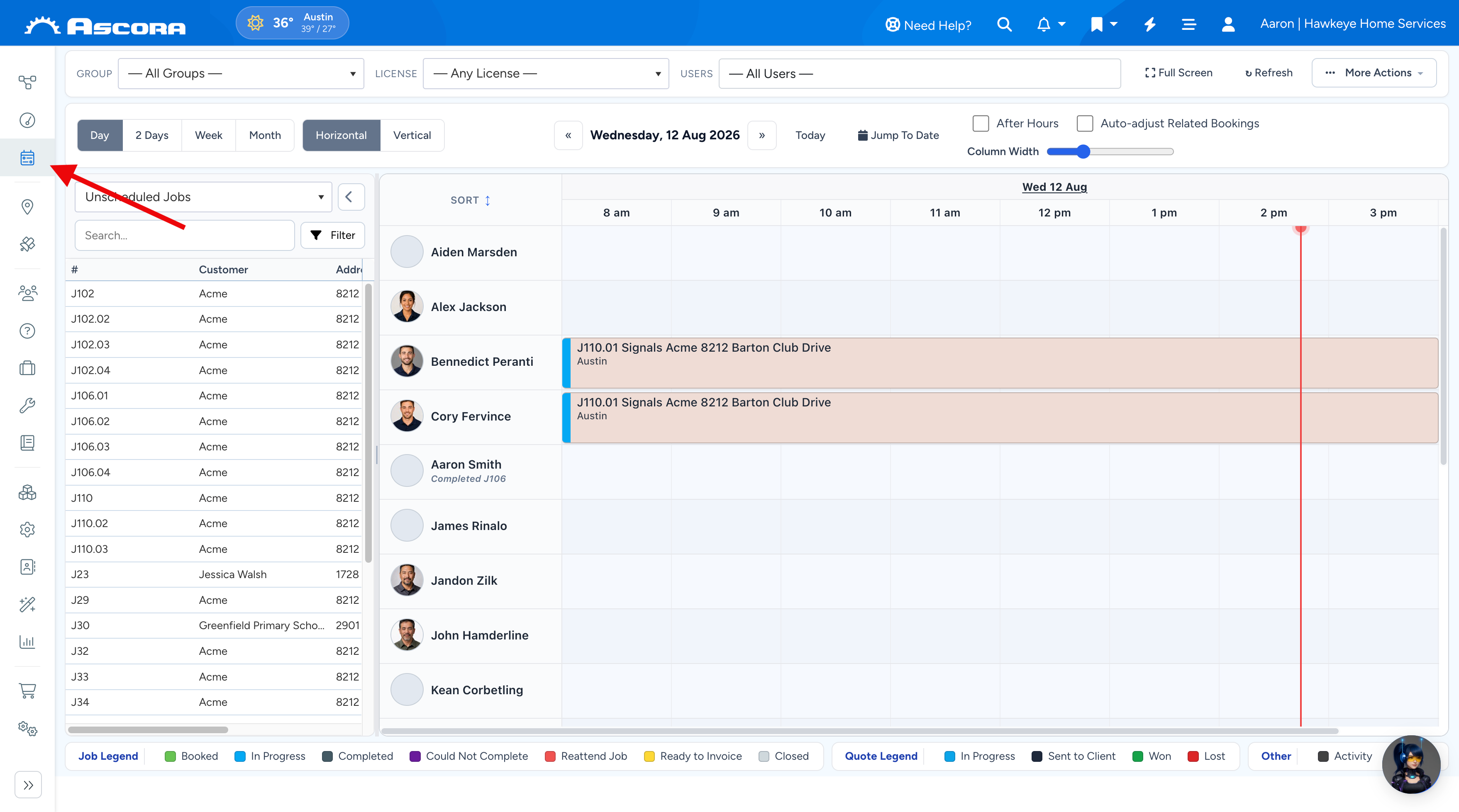
1. Choose the Scheduler icon from the side navbar to display the Scheduler.
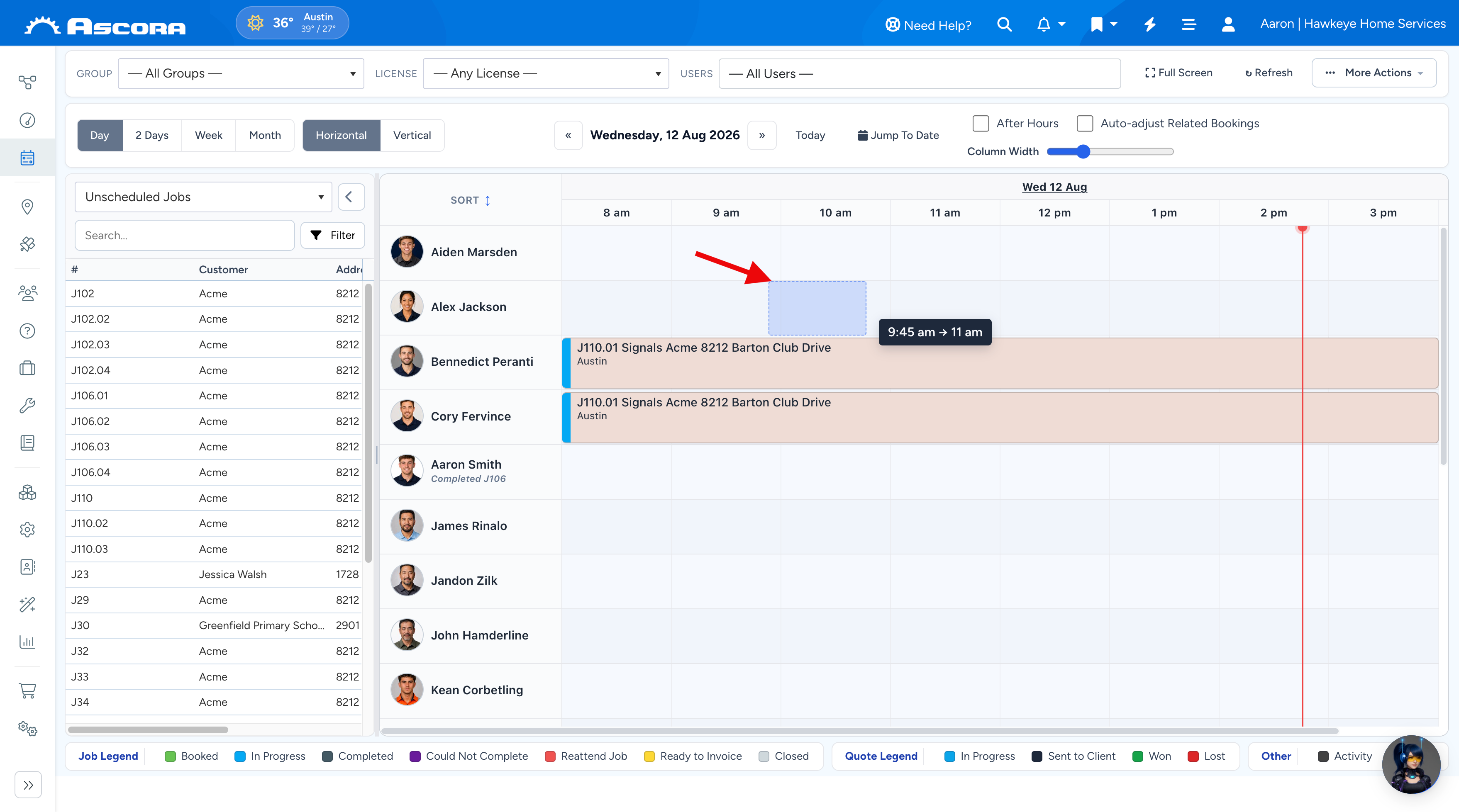
2. Hold the mouse pointer over the time and User for which you want to schedule the Job. Click-and-Drag to schedule the Job for your chosen duration. When you release the mouse button the Customer Selection screen will display.
If the Quote is for an existing Customer, find their record in the Customer Selection list. Click on the Customer then click the Next-> button. See Search for a Customer for assistance.
If the Quote is for a new Customer, click the Create New Customer button to create a new Customer record. See Create a New Customer for assistance.
The Quote Details screen will display.
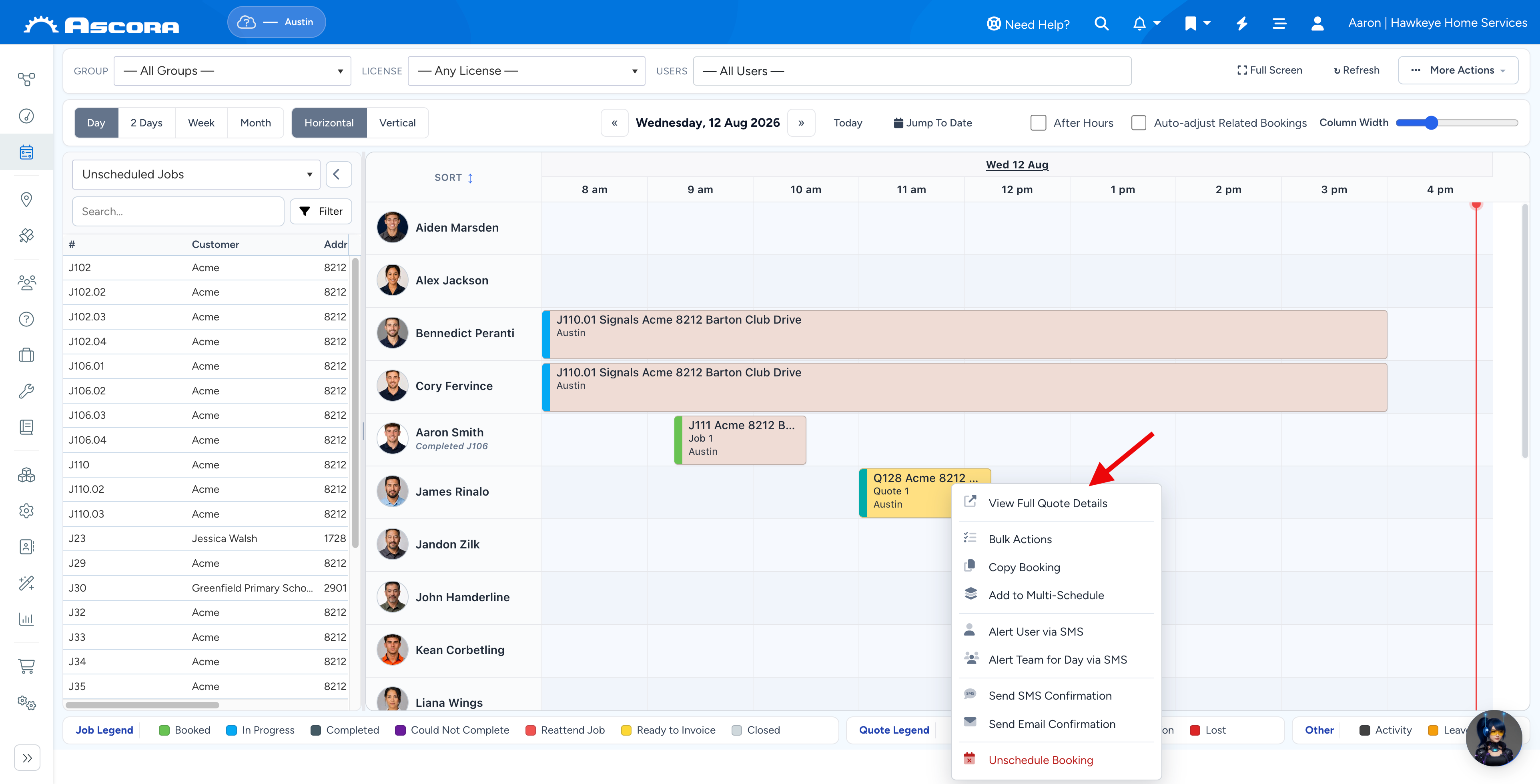
3. Select the tab "Qutote" and fill out its fields. To display the Quote Details, right-click the Job in the Scheduler then click the View Full Quote Details button.
Was this article helpful?
Contact support